
A matter template lets you save a folder structure, matter settings, document fields and annotation tags that can be applied automatically when creating a new matter. This saves time for matters that follow a consistent structure across your firm.
Setting up a matter template #
- Open the matter you want to use as the basis for your template
- Click the Setup tab at the top
- Click Folders from the left hand side
- Arrange your folders in the order you prefer by clicking the three bars icon and dragging them into position
- To add a new folder, click New Folder
- Enter a folder name and click Create
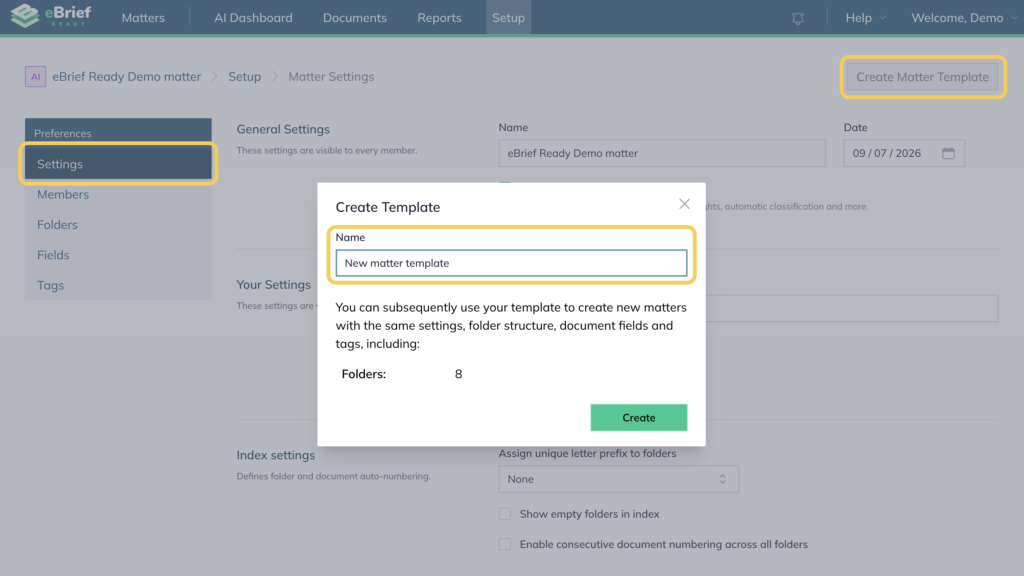
- Click Settings and then Create New Matter Template
- Enter a name for the template and click Create
Fields #
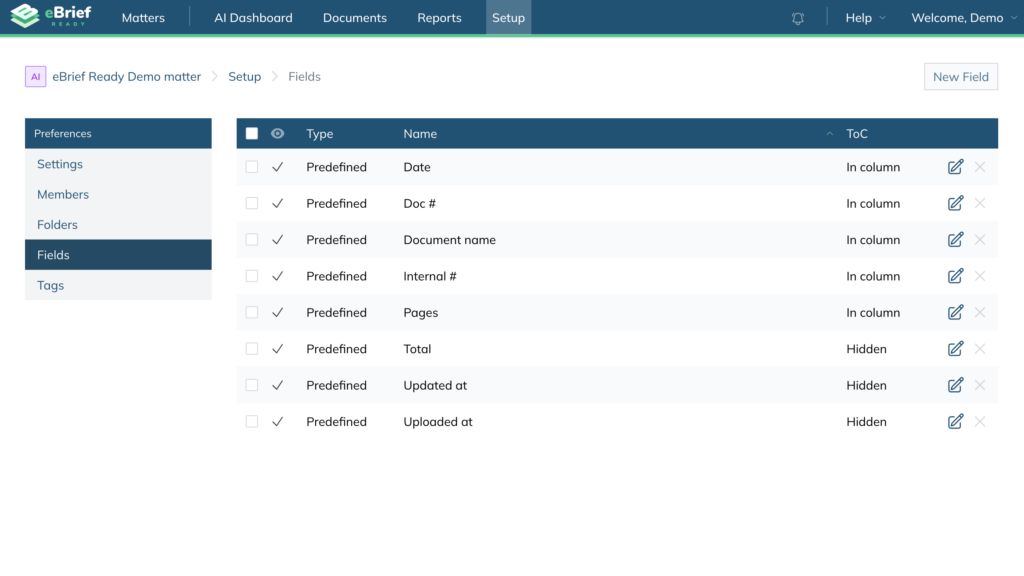
Fields control which columns appear in each folder’s document list. When setting up a template, you can configure fields for each folder so they are applied automatically every time the template is used.
To add or remove fields see Create custom fields for full instructions.
Tags #
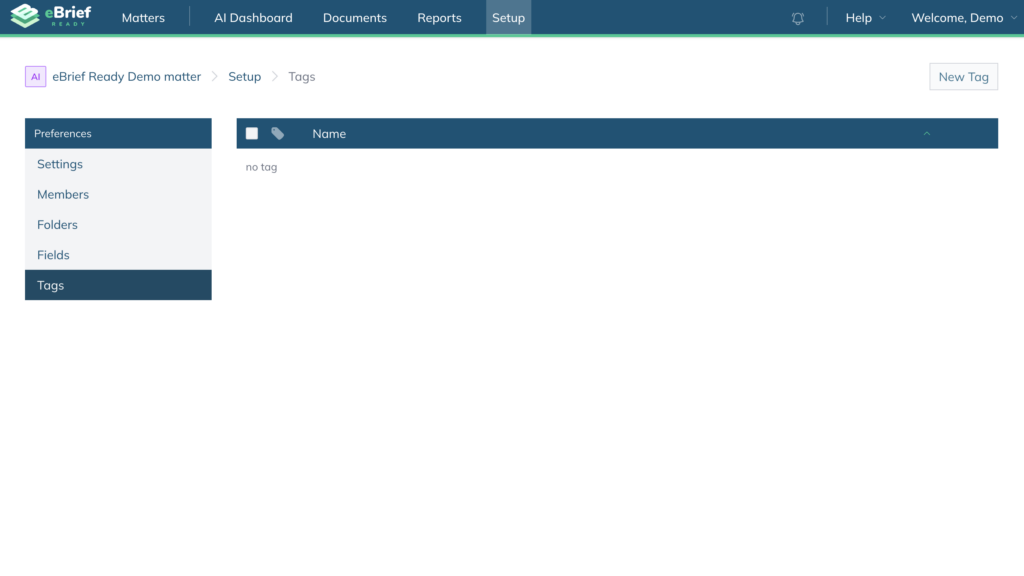
Tags are labels you can apply to annotations within a document to help categorise and search for key information. You can set up tags as part of your template so they are available to all members of the matter from the start.
To add a tag, see Creating Tags for full instructions.
Using a matter template #
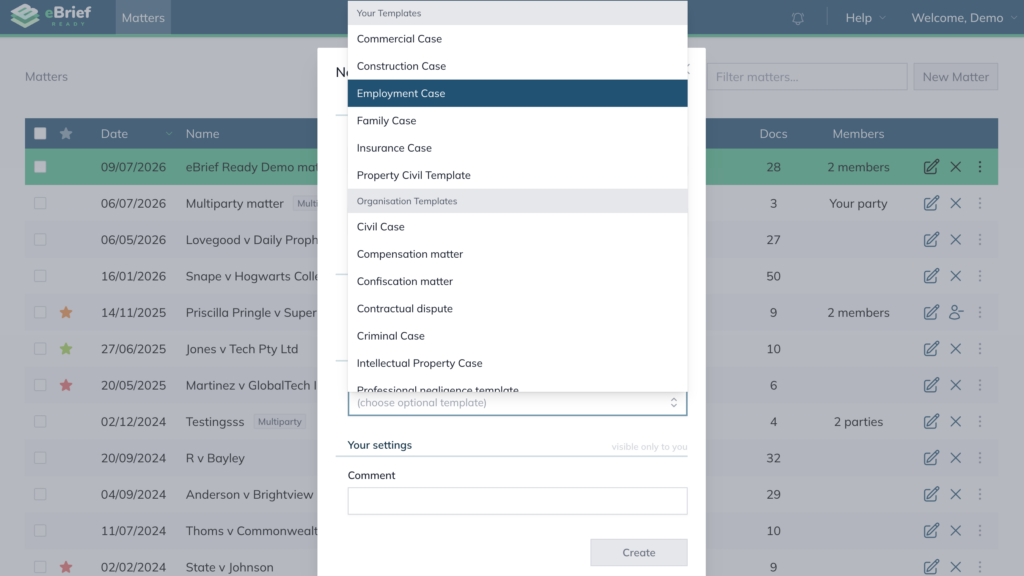
The next time you create a matter, you will have the option to select this template from the Create matter from template dropdown. Your folder structure, fields and tags will be applied automatically.
Managing Matter Templates #
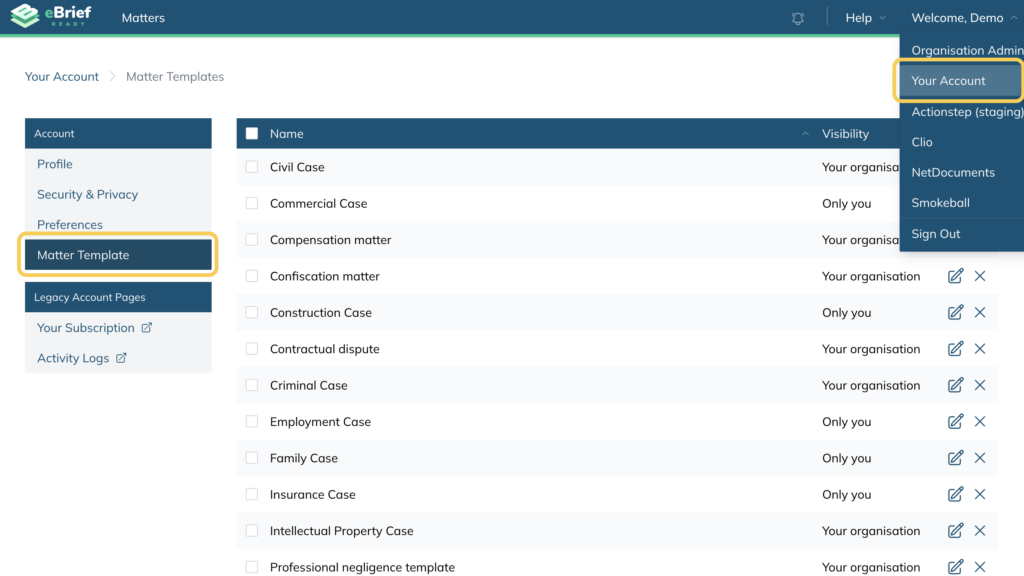
Matter Templates is where you can view, edit, and manage all the templates available to you and your organisation. Templates you have created are stored here and can be applied when creating a new matter.
- Click Welcome, [Your name] in the top right corner
- Click Your Account,
- Click Matter Template in the left hand menu
Visibility of your matter templates #
All available templates are listed by Name and Visibility. Visibility shows who can use each template:
- Your organisation — the template is available to everyone in your organisation when creating a new matter
- Only you — the template is only visible to you
Editing a matter template #
You can edit the name of an existing template.
- Click the edit icon (pencil) on the right hand side of the template you want to rename
- Update the template name
- Click Update
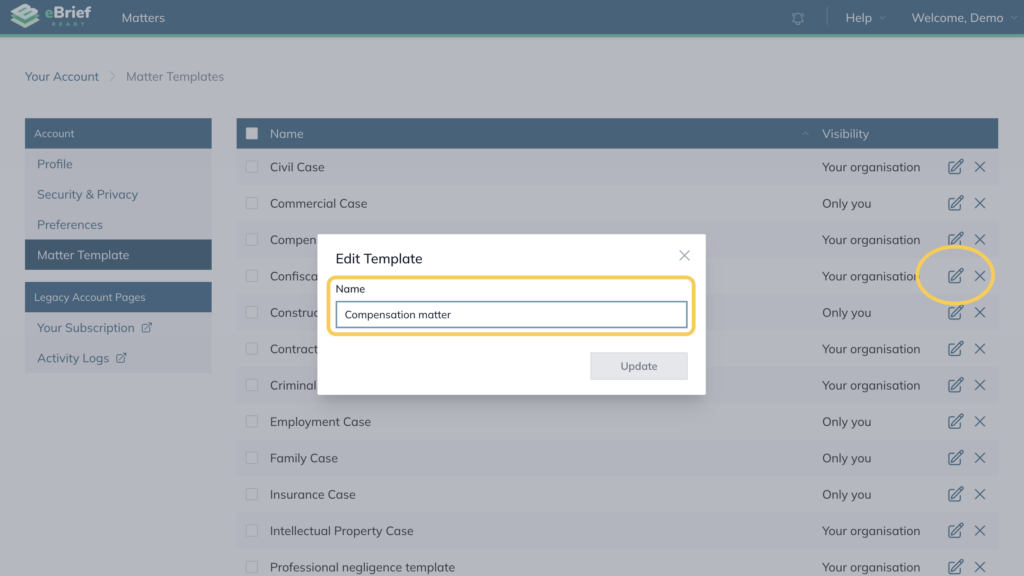
Note: To make changes to a template’s folder structure, fields or settings, you will need to create a new template. See How to create a matter template.
Enabling templates for your organisation #
Organisation administrators can make templates available to everyone in the organisation. When a template’s visibility is set to Your organisation, it will appear in the Create matter from template dropdown for all users when creating a new matter.
Note: Only organisation administrators can change the visibility of a template from Only you to Your organisation. If you need a template shared with your organisation, contact your administrator.
Deleting a matter template #
- Click the X icon on the right hand side of the template you want to remove
- Confirm the deletion