
Tags are labels you can apply as annotations to a document to help organise and categorise key information, making future reviews easier.
Creating a tag #
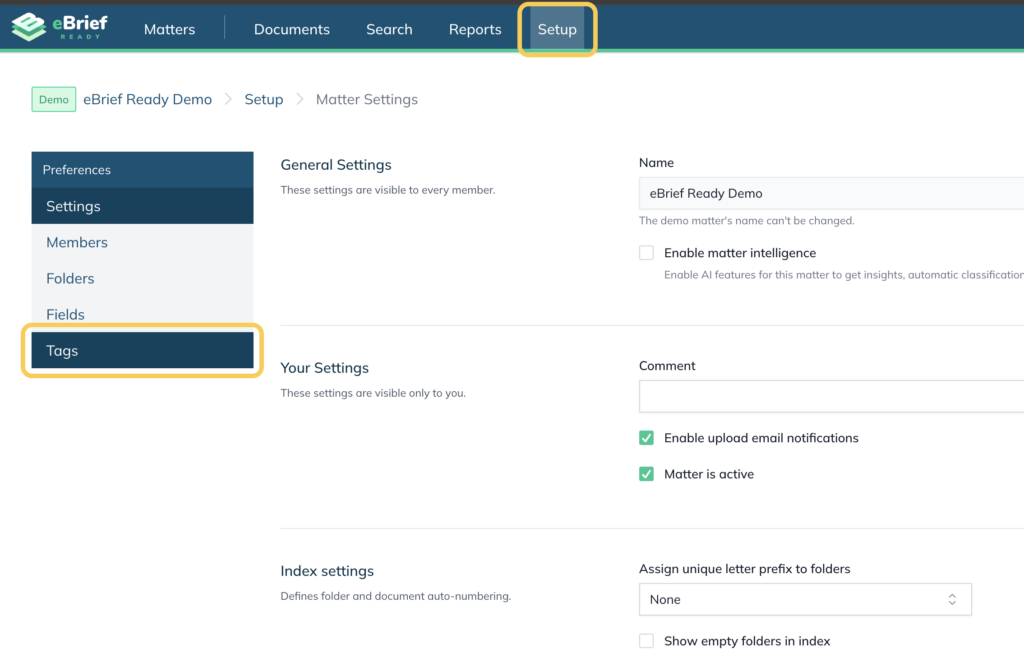
- Open the matter and click Setup
- Click Tags in the left hand menu
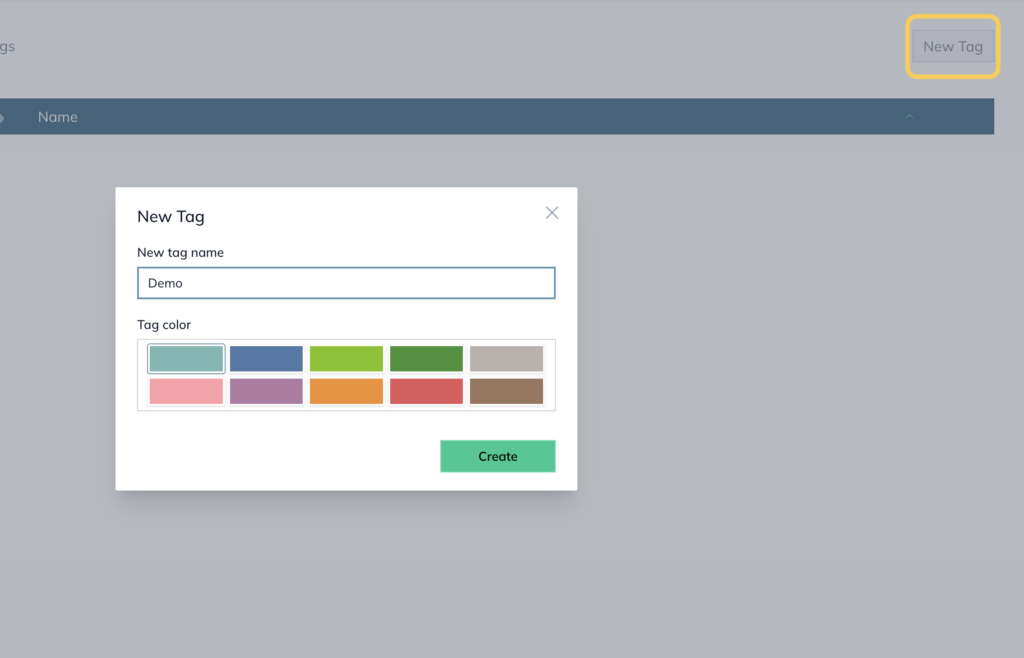
- Click New Tag in the top right corner
- Enter a name for the tag and select a colour
- Click Create
Note: You can also access the Tag settings menu by clicking the Edit Matter button of the matter while in the Matters view.
You can view all the tags you have created and update their names and colours at any time. #
- Open the matter and click Setup
- Click Tags in the left hand menu
- Click the Edit Tag button next to the tag you want to update
- Edit the tag name or select a different colour
- Click Update
Note: Tags can be saved as part of a matter template so they are available automatically every time that template is used. See Creating a matter template for more detail.
Deleting a tag #
- Open the matter and click Setup
- Click Tags in the left hand menu
- Click the Cross button next to the tag you want to delete
- Click OK to confirm delation
Note: Deleting a tag will remove it from all annotations it has been applied to across the matter.
For further information or assistance, please do not hesitate to reach out to our dedicated Support Team via support@legalready.ai or +61 3 9020 4456.