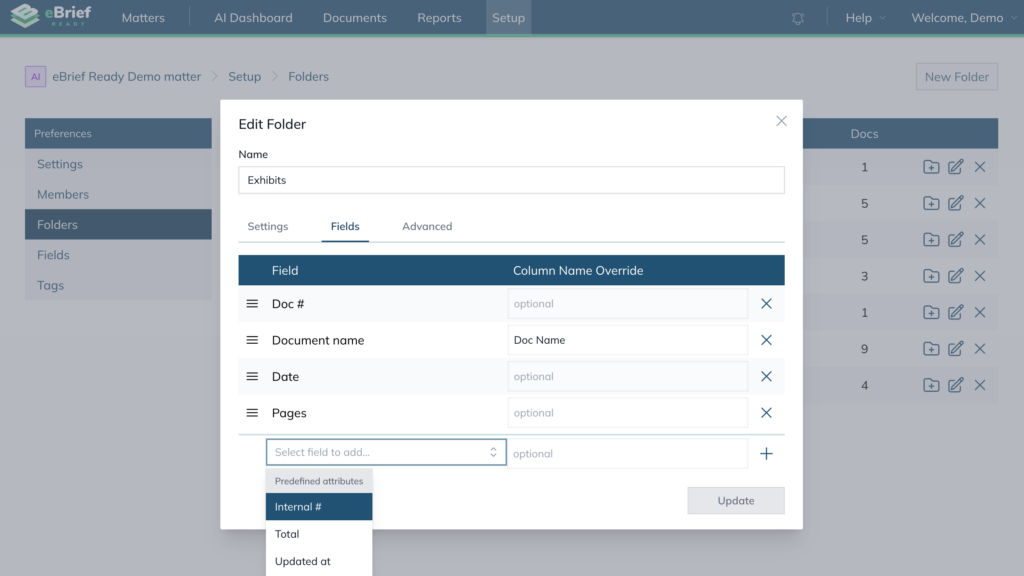
Fields control which columns appear in a folder’s document list. You can add, remove and rename fields to suit the needs of each folder within your matter.
How to create custom fields #
- Open the matter where you want to create the new fields
- Click on New Field on the top right corner
- Add a field name
- Optionally, update the Data type and display options
- Click Create
Your field can now be added to any folder.
How to add or edit fields in a folder #
- Open the matter where you want to edit the folder fields
- Click on the folder you want to modify
- Click the Cog icon on the right hand side of the folder
- Under the Fields tab you can:
- Add a field — click the Select a field to add dropdown at the bottom of the list and click +
- Rename a field — type a new name in the Column Name Override field next to it
- Remove a field — click the X button next to the field you want to remove
- Reorder fields — drag and drop using the three lines icon on the left of each field
- Click Update
Note: You can also edit a field’s settings by going to the Setup tab and clicking Folder in the left panel.