
This article covers how to create folders, configure their settings, and add subfolders within a matter.
Creating a folder #
- Click into the matter where you want to update folder settings
- Click the Setup tab at the top
- Select Folders from the left panel
- Click New Folder
- Enter a folder name in the Name field
- Click Create
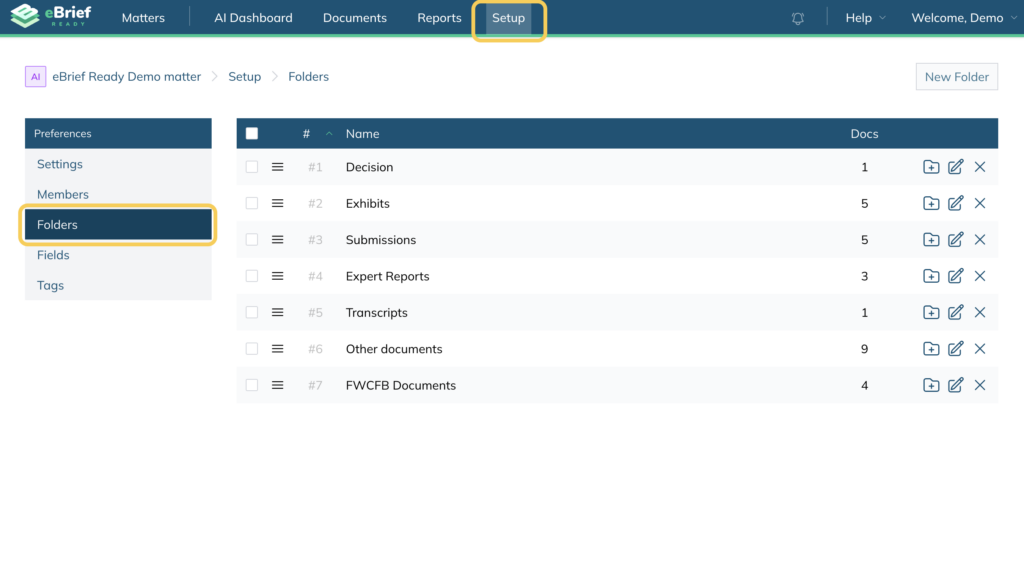
Your new folder/s will appear at the bottom of the folder list. You can rearrange them at any time by dragging and dropping using the three lines icon.
Note: Folders will be renumbered automatically based on the new sequence.
Editing Folder settings #
Customise any folder by adjusting its Settings, Fields and Advanced options. To update these settings:
- Click into the matter where you want to update folder settings
- Click the Setup tab at the top
- Select Folders from the left panel
- Click the Edit Folder icon – the Edit Folder window will open
- Refer to the following heading below to find out more about each tab
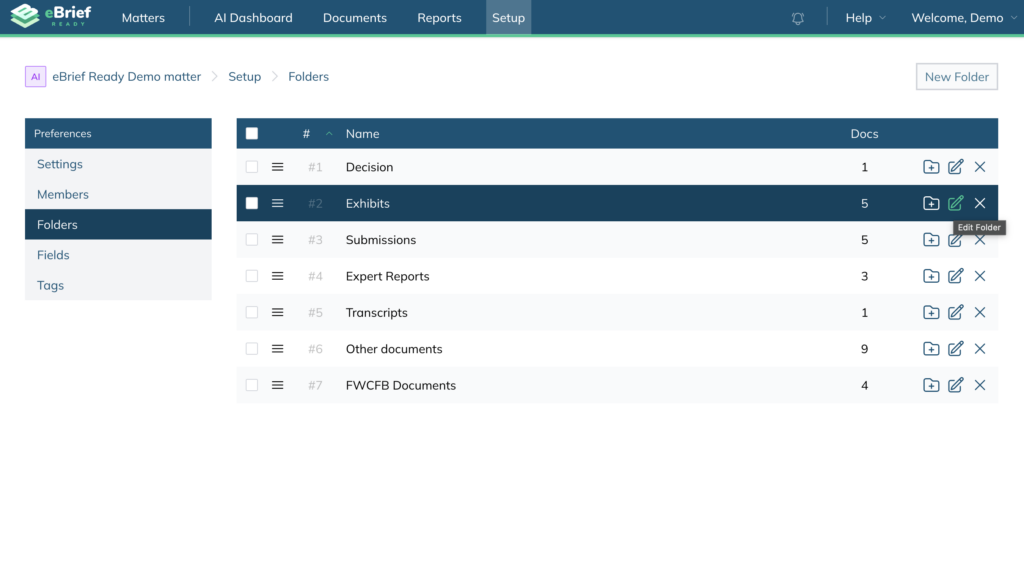
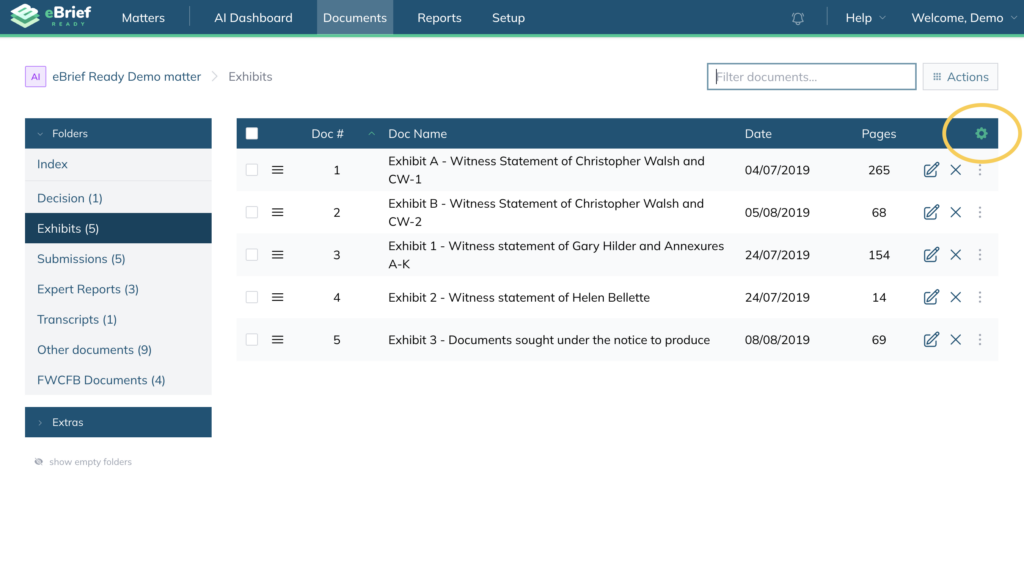
Note: You can also edit a folder’s settings without going to the Setup tab. In the Document tab, click the folder in the left panel and then click the Cog to access the Edit Folder window.
Edit Folder > Settings #
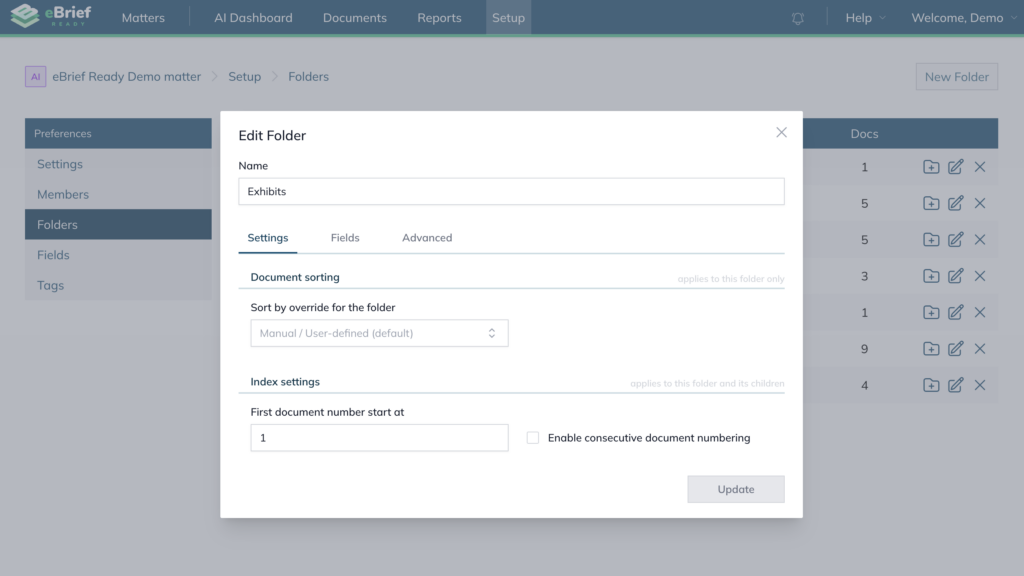
The Settings tab controls how documents are sorted within the folder and how they are numbered in the index.
- Click on the Sort by override for the folder dropdown and choose how you want documents ordered:
- Manual / User-defined (default) — drag and drop documents into your preferred order
- Field: Date — documents are ordered automatically by date
- Field: Document name — documents are ordered automatically by name
- If needed, change the First document number start at field to set what number documents start from in this folder
- Tick Enable consecutive document numbering if you want the numbering to continue from the previous folder rather than restart at 1
- Click Update
Edit Folder > Fields #
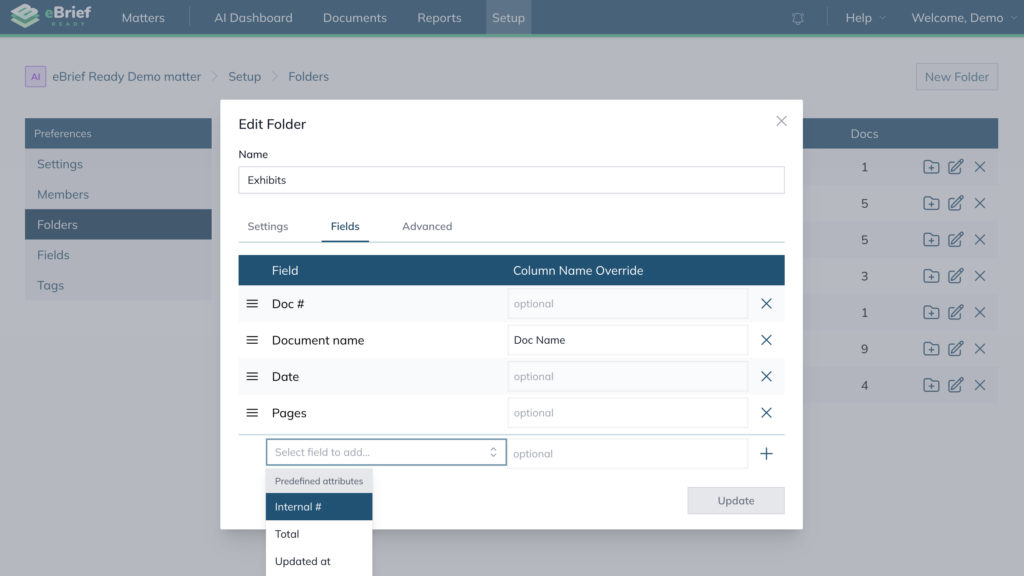
The Fields tab lets you choose which columns appear in the folder and rename them if needed.
- To rename a column, type a new name in the Column Name Override field next to it
- To remove a column, click the X on the right
- To add a new column, select one from the Select field to add dropdown and click +
- Click Update
Edit Folder > Advanced #
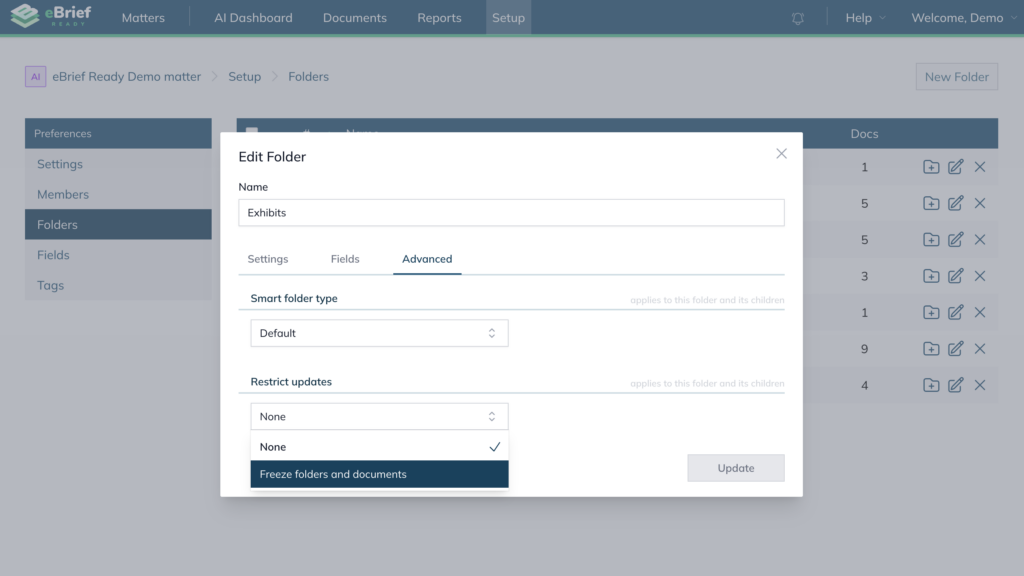
The Advanced tab lets you lock a folder to prevent any further changes to it or its documents.
- In Restrict updates dropdown, select one of the following:
- None — no restrictions applied
- Freeze folders and documents — locks the folder and documents
- Click Update
Creating a subfolder #
Subfolders sit within a parent folder and allow you to organise documents at a more granular level.
- Click into the matter where you want to update folder settings
- Click the Setup tab at the top
- Select Folders from the left hand frame
- Click on the plus sign on the right hand side of the folder name
- Enter a name for your subfolder and, optionally, review the Setting and Advanced tabs
- Click Create
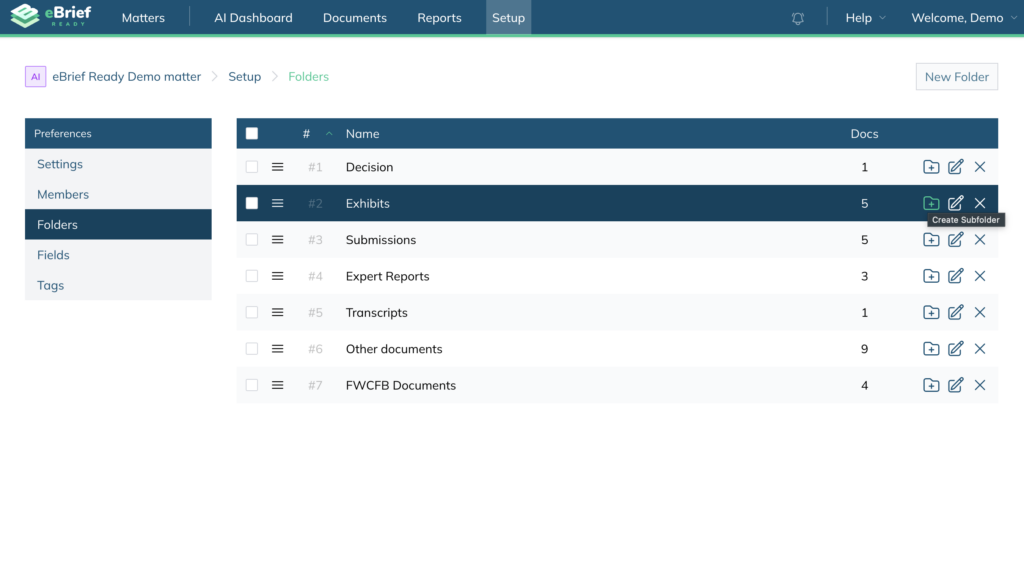
Alternatively, you can click on the folder name you want to add a subfolder to, and then click New Sub-Folder on the top right corner:
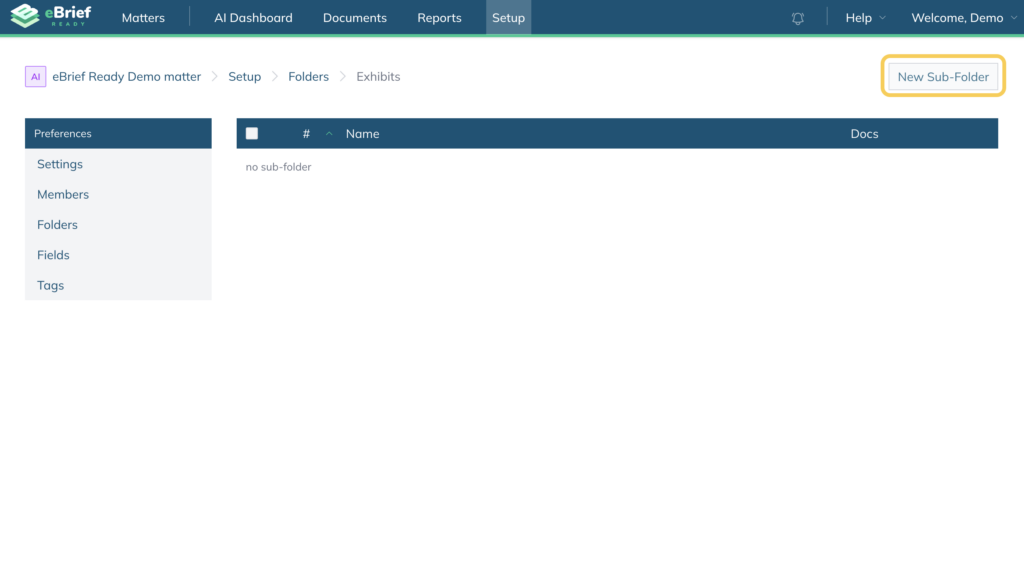
A subfolder indicator will appear next to any folder that contains a subfolder. To view the subfolder, click on the parent folder. You can add additional subfolders as needed.
Deleting a folder #
If you no longer need a folder, you can delete it from the Folders view.
- Click into the matter where you want to update folder settings
- Click the Setup tab at the top
- Select Folders from the left hand frame
- Click the X icon on the right hand side of the folder name
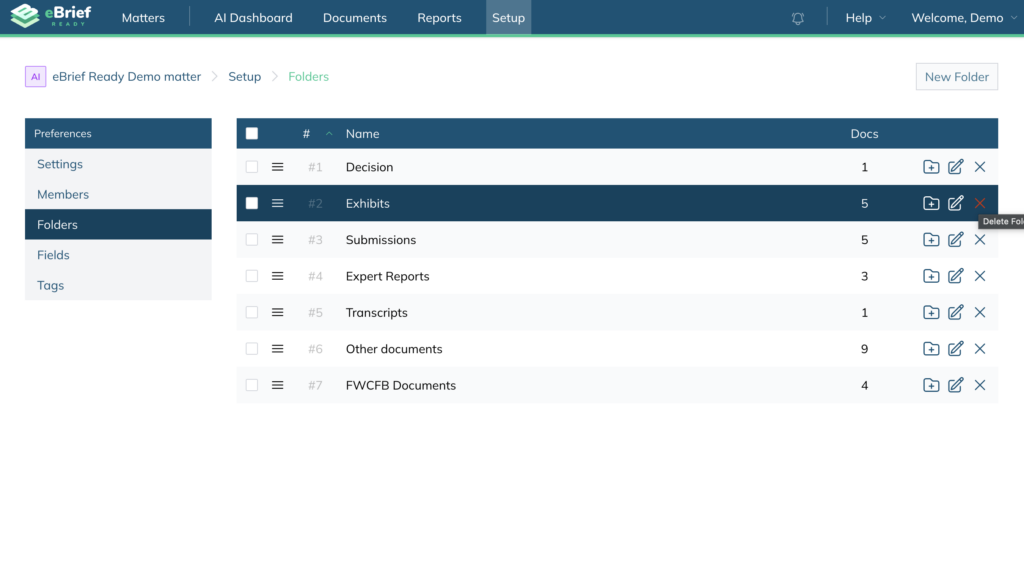
Note: Deleting a folder will also delete all documents within it. Documents are moved to the Recycle Bin and permanently deleted after the retention period (set by your administrator) elapses.