
In eBrief Ready you can control how documents are ordered within a matter and inside individual folders.
Sorting options #
- Manual / User-defined (default) — you control the order by dragging and dropping documents using the handlebars (three lines icon)
- Field: Date — documents are ordered automatically by date
- Field: Document name — documents are ordered automatically by name
Sorting at the matter level #
Matter level sorting sets the default order for documents across the entire matter.
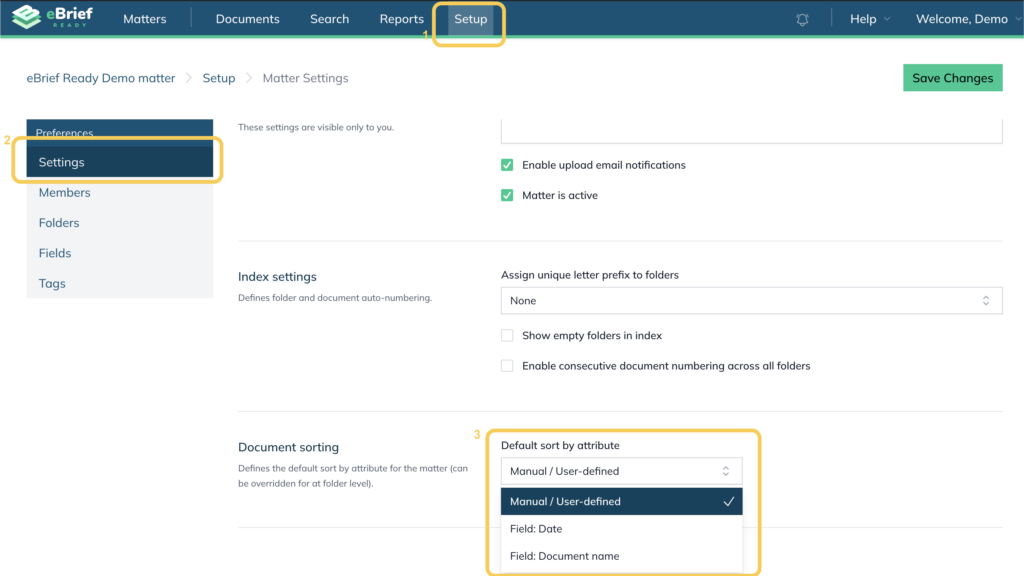
- Open the matter and click Setup
- Select Settings from the left panel
- Under Document sorting, select your preferred option from the Default sort by attribute dropdown
Note: For Field: Date or Field: Document name, tick Sort in reverse order if you want to reverse the direction.
- Click Save Changes
Sorting within individual folders #
Individual folders can have their own sort order, overriding the matter level setting.
- In the Setup tab, click Folders in the left panel
- Click the pencil icon to the right of the folder – the Edit Folder window appears
- Under Document sorting, select your preferred option from the Sort all documents automatically by dropdown
- Click Update
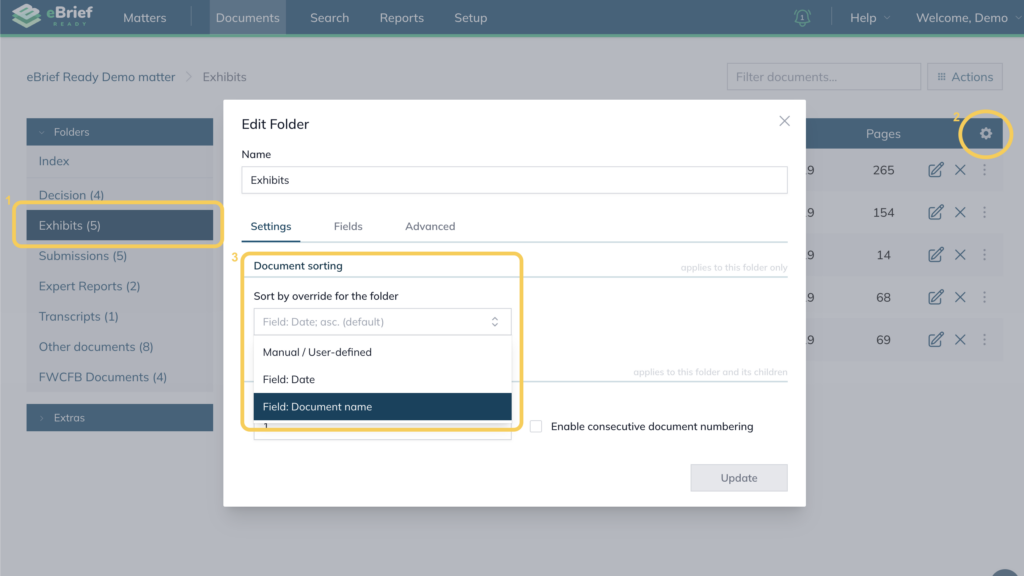
Note: You can also edit a folder’s settings without going to the Setup tab. In the Document tab, click the folder in the left panel and then click the Cog to access the Edit Folder window.
Note: You can combine sorting at the matter and folder level — for example, sort the whole matter by Field: Date, then open a specific folder (like Exhibits) and set it to Field: Document name instead.
When to Use Each Sorting Option #
Manual / User-defined
Use this option when you want to control the exact order of documents within a folder or matter.
Field: Date
Best used when reviewing documents chronologically, such as correspondence, filings, or document production.
Field: Document name
Helpful when documents follow a structured naming convention, such as numbered exhibits or standardised document titles.
For further information or assistance, please do not hesitate to reach out to our dedicated Support Team via support@legalready.ai or +61 3 9020 4456.