
In eBrief Ready, you can control how documents are ordered within a matter and inside individual folders. Sorting allows you to organise documents in a way that supports your workflow and makes it easier to locate specific files.
You can sort documents using the following options:
- Manual / User-defined. Documents appear in the order defined by the user.
- Field: Date. Documents are ordered chronologically based on the document date field.
- Field: Document name. Documents are ordered alphabetically by document name.
You can combine sorting at the matter level with different sorting preferences inside individual folders.
Sorting Documents at the Matter Level #
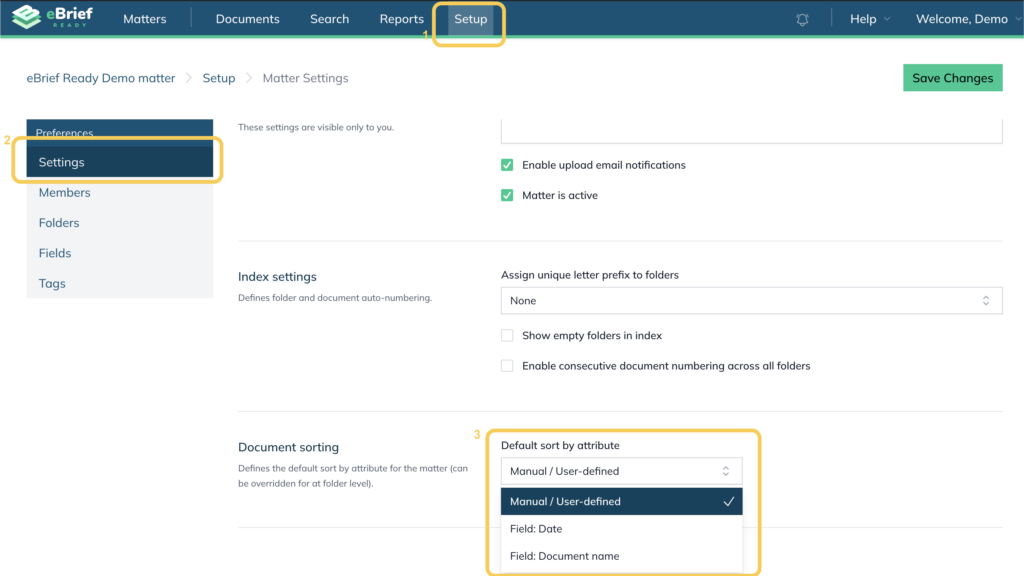
At the matter level, the selected sorting option determines the default order in which documents appear throughout the entire matter.
The available options are:
- Manual / User-defined
- Field: Date
- Field: Document name
For Field: Date and Field: Document name, you can also enable Sort in reverse order by selecting the checkbox. This reverses the default order (for example, newest to oldest for dates or Z-A for document names).
This setting establishes the primary document order for the entire matter.
Sorting Documents Within Folders #
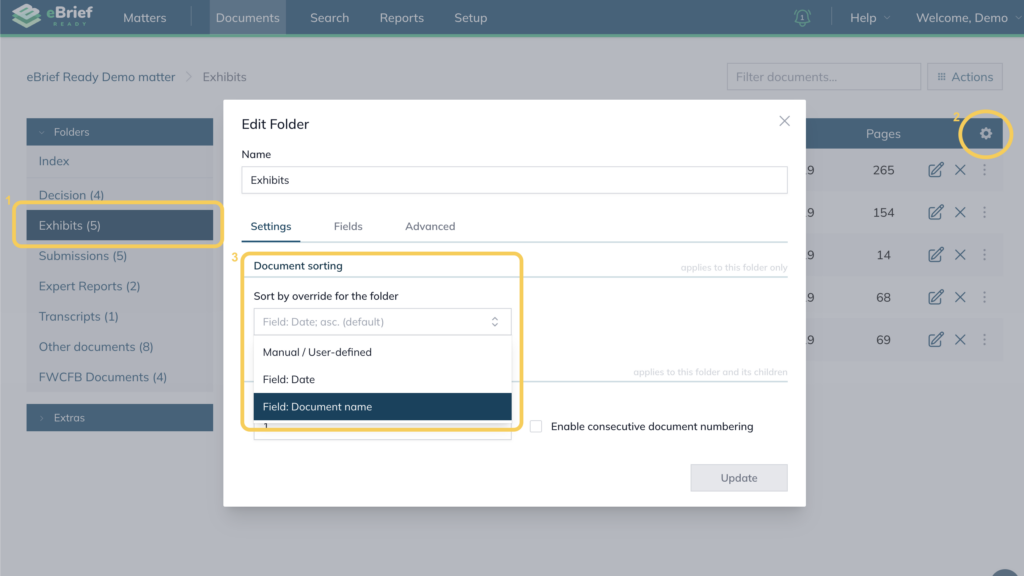
Individual folders can have their own sorting order, separate from the overall matter setting.
You can set the entire matter to sort by Field: Date while still opening individual folders and applying a different sorting option (such as Manual / User-defined or Field: Document name).
This flexibility allows you to organise specific folders differently depending on the type of documents they contain.
For folders sorted by Field: Date or Field: Document name, you can also select Sort in reverse order to change the direction of the sorting.
Combining Matter and Folder Sorting #
You can combine sorting at the matter level with different sorting preferences inside individual folders.
For example, you may choose to sort the entire matter using Field: Date to maintain a chronological view of documents across the case. When you open a specific folder (such as a folder containing exhibits) you can then apply Field: Document name to organise those documents alphabetically or by numbering.
This approach allows you to maintain a consistent structure across the matter while still organising individual folders in the way that best suits their contents.
When to Use Each Sorting Option #
Manual / User-defined
Use this option when you want to control the exact order of documents within a folder or matter.
Field: Date
Best used when reviewing documents chronologically, such as correspondence, filings, or document production.
Field: Document name
Helpful when documents follow a structured naming convention, such as numbered exhibits or standardised document titles.
Using these sorting options effectively helps maintain a clear and structured document organisation within eBrief Ready.