
Beta Access Only: This feature is currently in Beta testing and available to a limited group of users. It will be rolled out to everyone once testing is complete.
Before you share a document with clients, counsel, courts, or other parties, identify and remove any sensitive information it contains. Document Redaction lets you permanently remove confidential information from PDF documents, without switching to separate software or disconnected processes. All redactions processing and resulting files are hosted exclusively within Australia only.
Note: Redactions apply to the output file, such as a Court Book or a printed individual document, rather than changing the original document.
This article walks you through marking a document for redaction, applying the redactions, and removing a redaction if needed.
Marking a document for redaction #
- Click into your matter and open the document you want to redact
- Click Toggle Redactions on the right to activate the redaction tool
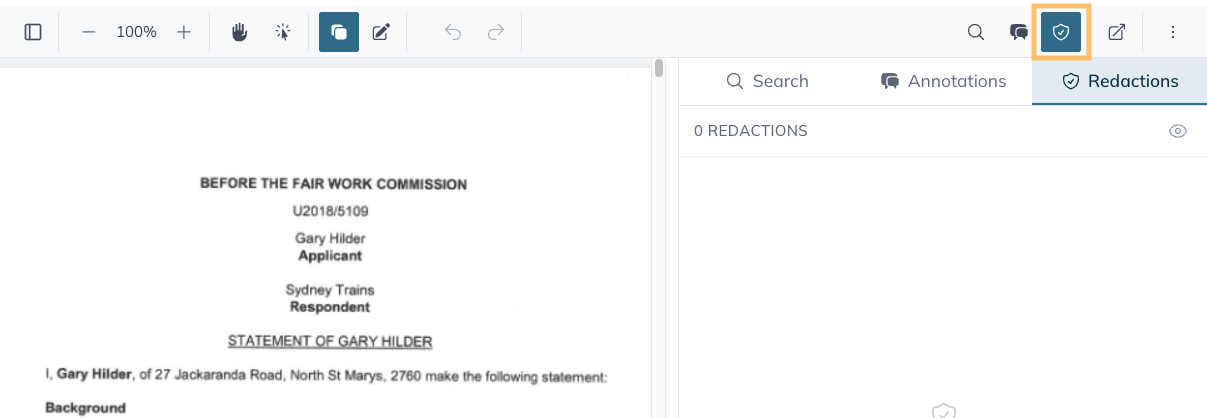
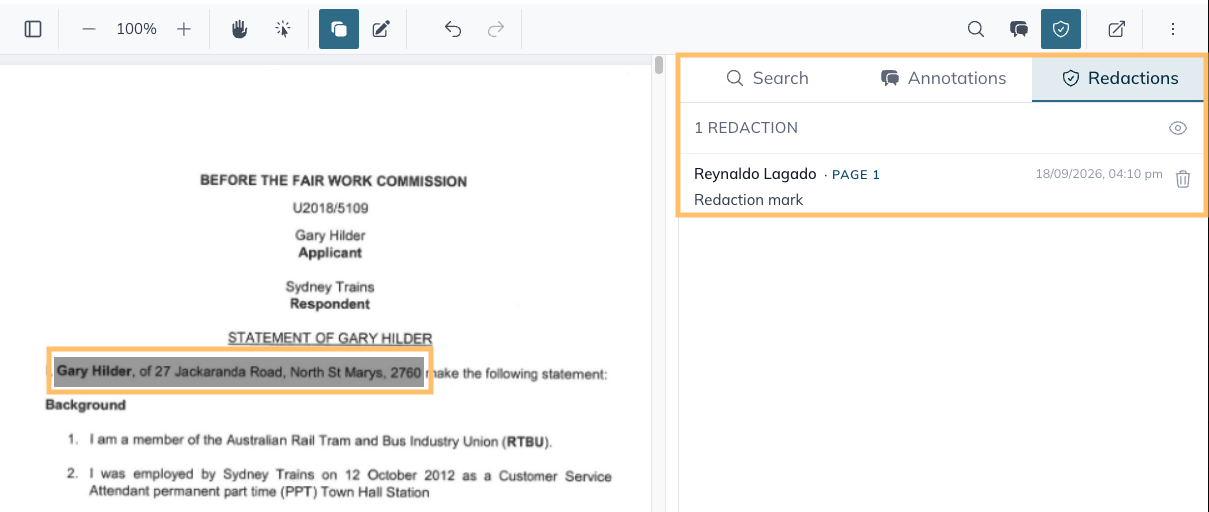
- Click and drag to highlight a word or section you want to redact — a grey box will mark the selection
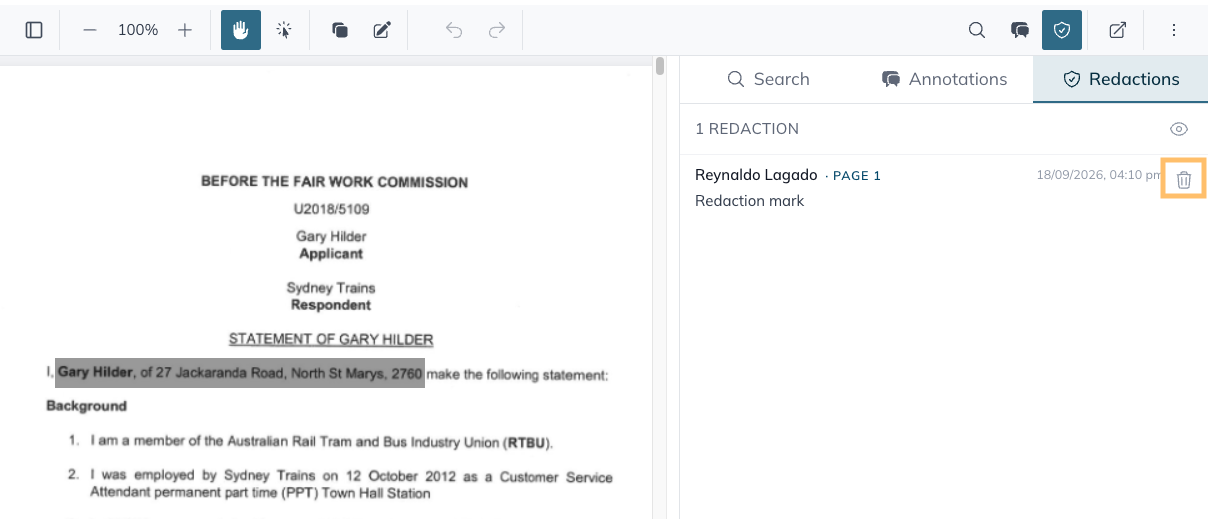
Note: Each marked selection appears in the redaction list in the right side pane.
Applying your redactions #
There are a few options available to apply your redactions once you’ve finished marking a document and it has been reviewed:
- Option 1: Create a Brief/Court Book
- Option 2: Print the document from the PDF Viewer
- Option 3: Create Download
IMPORTANT: Downloading the document from the PDF Viewer, DOES NOT apply redactions. Use one of the options above instead.
Option 1 – Creating a Brief/Court Book
- Open your matter and click Actions in the top right corner
- Click Create Brief/Court Book
- Enter a name for your brief or court book
- Select which folders to include
- Tick Apply redactions in the bundle
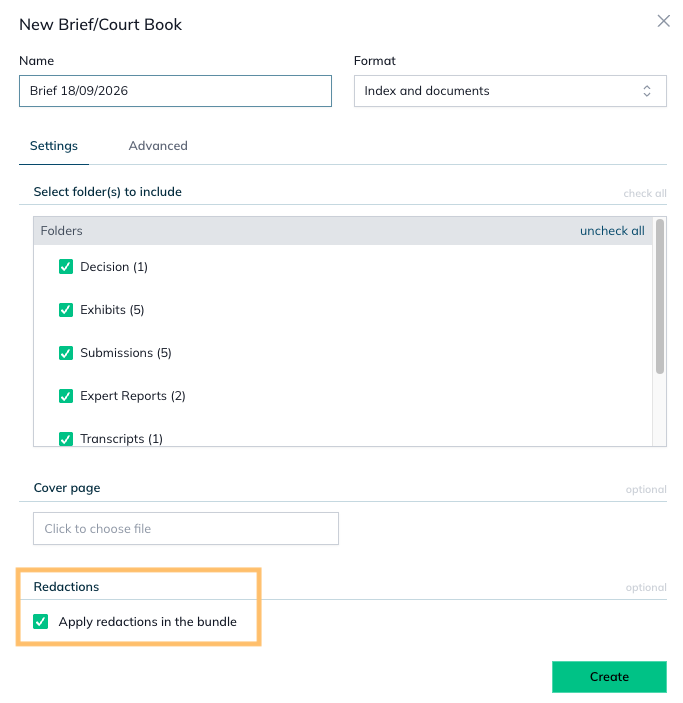
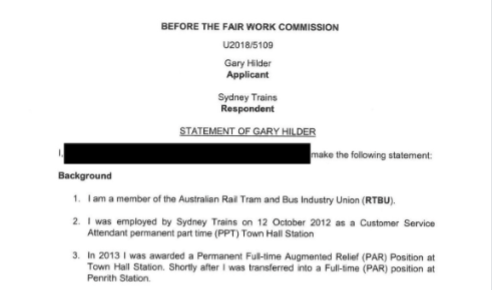
- Click Create — your redactions are applied and appear as a solid black box
Option 2 – Print the document from the PDF Viewer
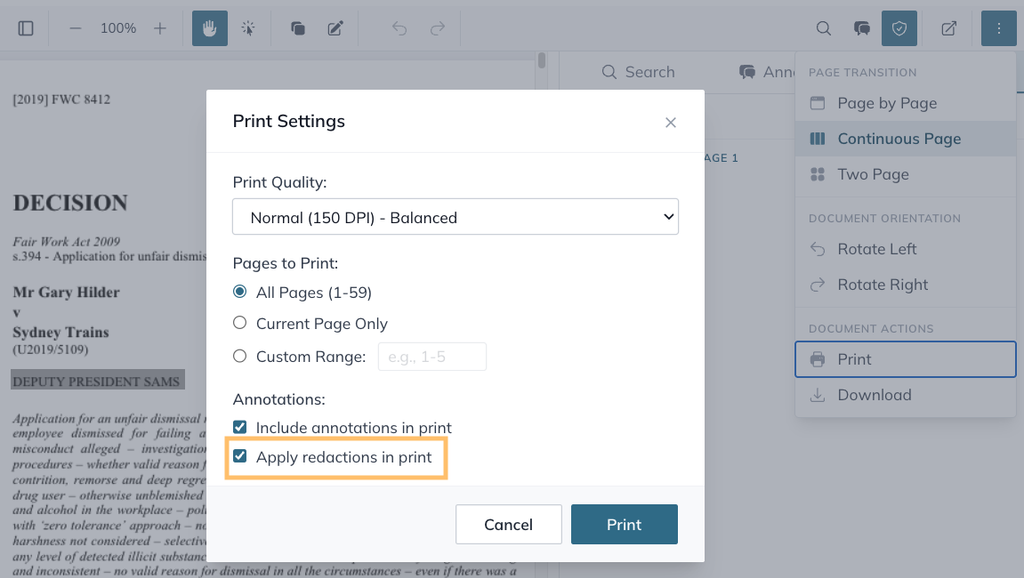
Use the Print option to apply redactions when printing individual documents, instead of creating a bundle.
- Open your matter and click document to open it in the PDF Viewer
- Click the Three Dots and select Print
- Under Annotations, tick Apply redaction in print
- Click Print
Option 3 – Create Download
Download your matter documents as a ZIP file to save redacted PDFs directly to your computer.
Note: Files must be exported as PDFs to apply redactions; original file formats will remain unredacted.
- Open your matter and click Actions
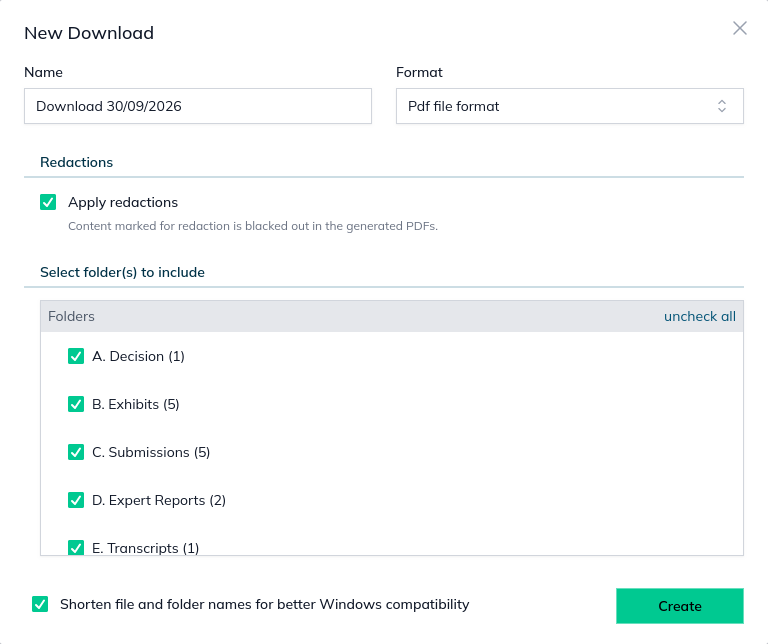
- Select Create Download
- Enter a Name for the download
- Under Format, select PDF file format
- Tick Apply Redactions and under Select folder(s) to include, tick the folders you want to include in the download
- (Optional) Untick Shorten file and folder names for better Windows compatibility if you have a specific reason to untick it
- Click Create
Tip: To access downloaded files go to Documents > Extras > Download.
Deleting a redaction #
You can easily delete redactions from a document by clicking the Recycling Bin icon in the Redactions pane on the right hand side.
For further information or assistance, please do not hesitate to reach out to our dedicated Support Team via support@legalready.ai or +61 3 9020 4456.