
This article explains how to upload an entire folder from your computer into eBrief Ready using drag and drop.
Uploading a folder
- Open the matter you want to upload documents to.
- Click Actions and select Add Documents.
- Drag and drop the entire folder from your computer into the upload area.
- Click Choose folders individually.
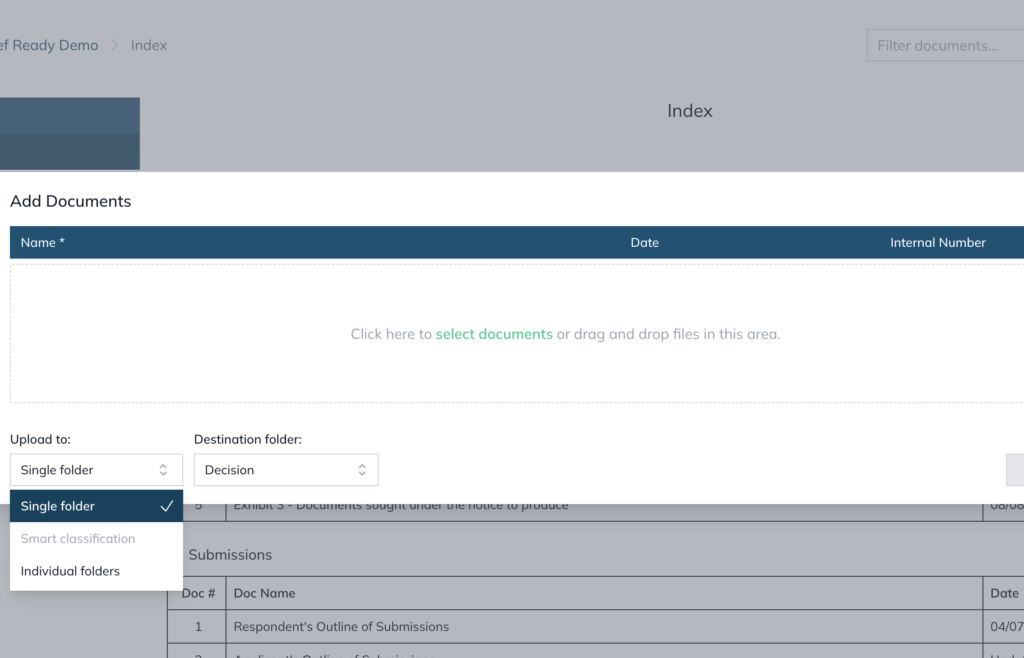
- The folder structure from your hard drive will be displayed by default. You can also select an existing folder from the dropdown list, or create subfolders within the new folder if needed.
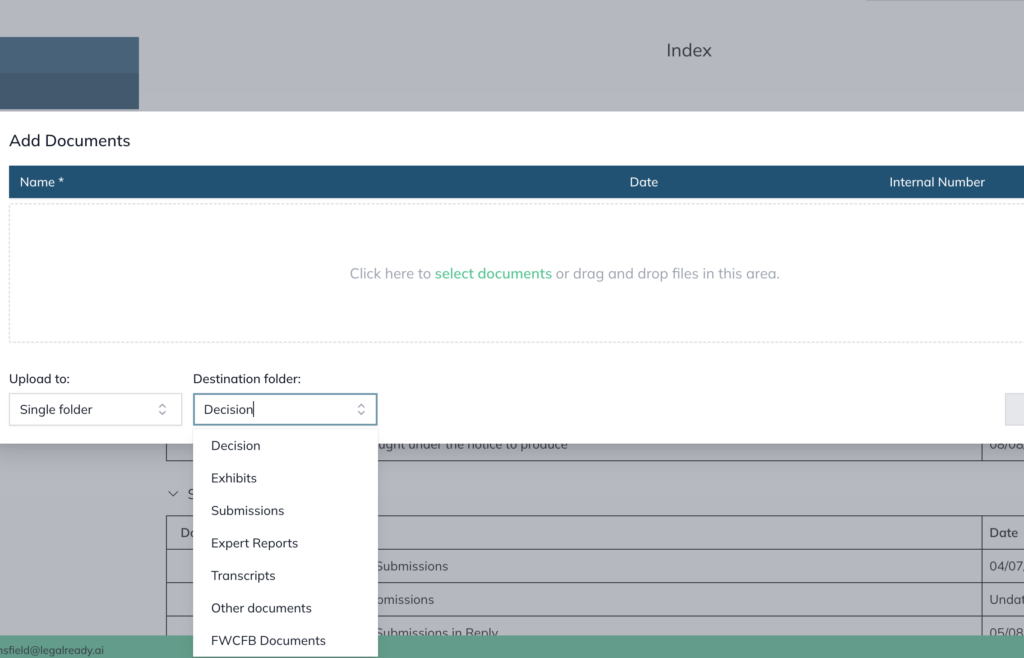
- Click Upload.
Documents within the folder will be automatically uploaded to the selected matter folder. You can move documents to different folders at any time after upload.
The index will display documents organised by their selected folders and subfolders.
For further information or assistance, please do not hesitate to reach out to our dedicated Support Team via support@legalready.ai or +61 3 9020 4456.