
Matter templates allow you to create new matters with the same settings, folder structure, documents, fields, and tags already in place — saving time and ensuring consistency across your team.
Creating a template from an existing matter #
- Click the edit pencil on the right-hand side of the matter you want to use as a template
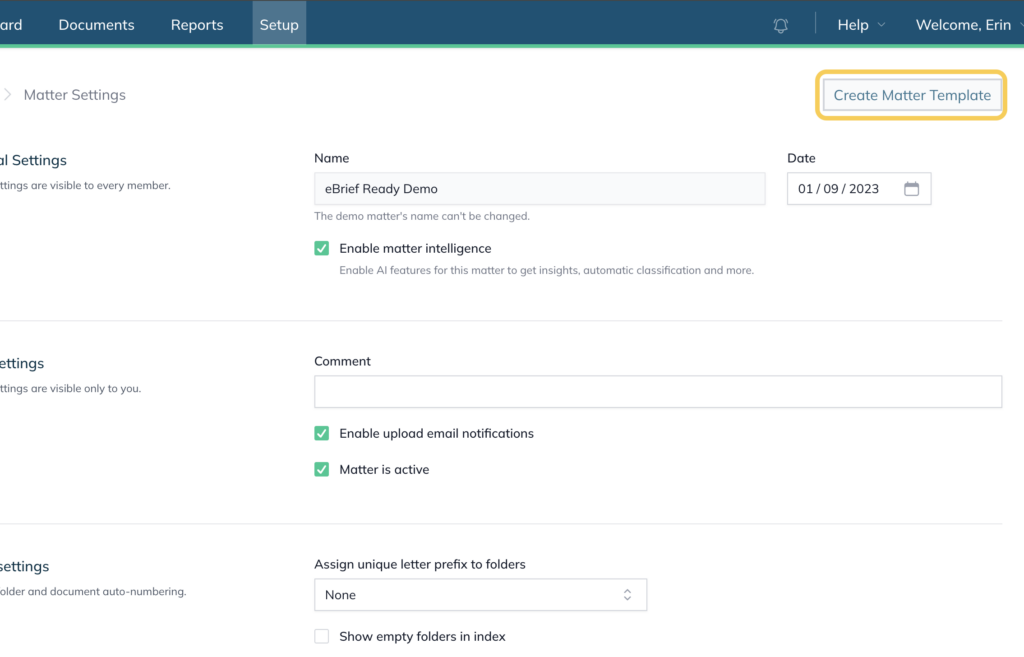
- This takes you to the matter Setup tab
- Click Create Matter Template
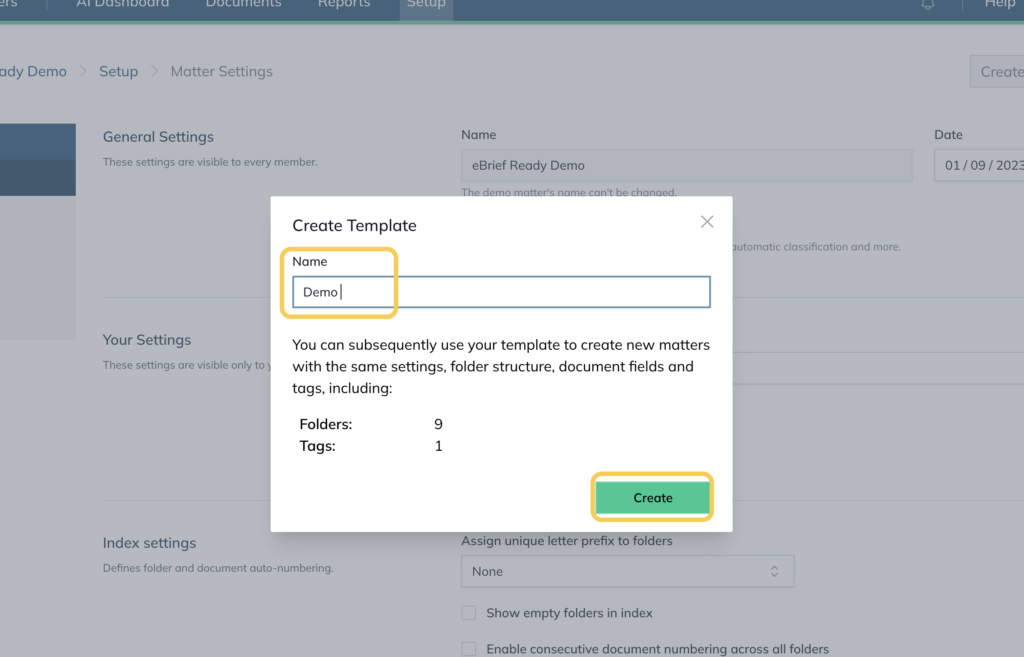
- Enter a template name and click Create
Using a template to create a new matter #
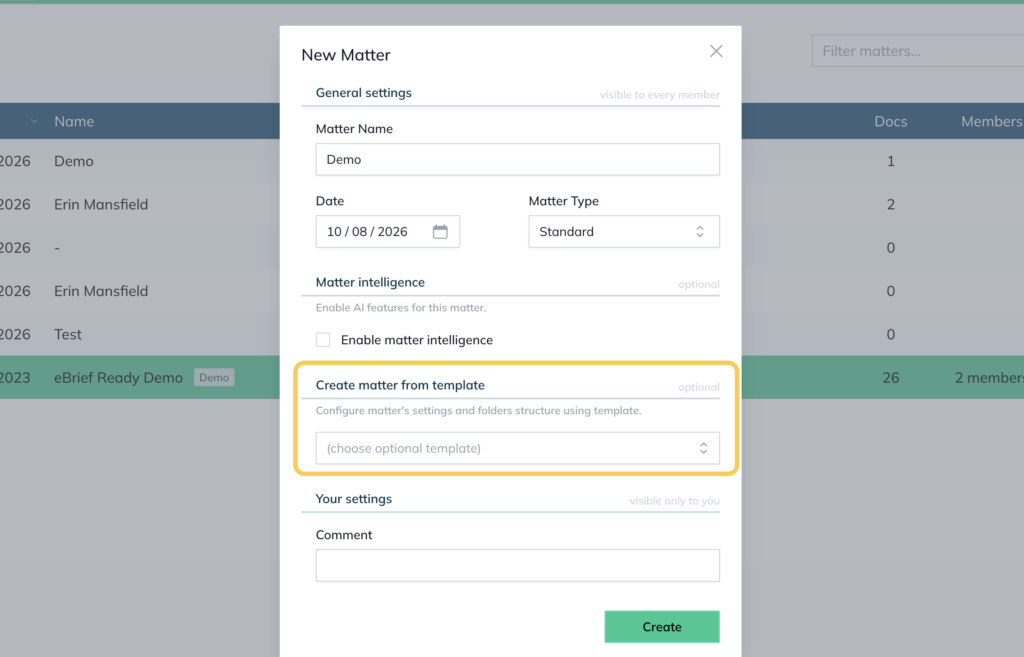
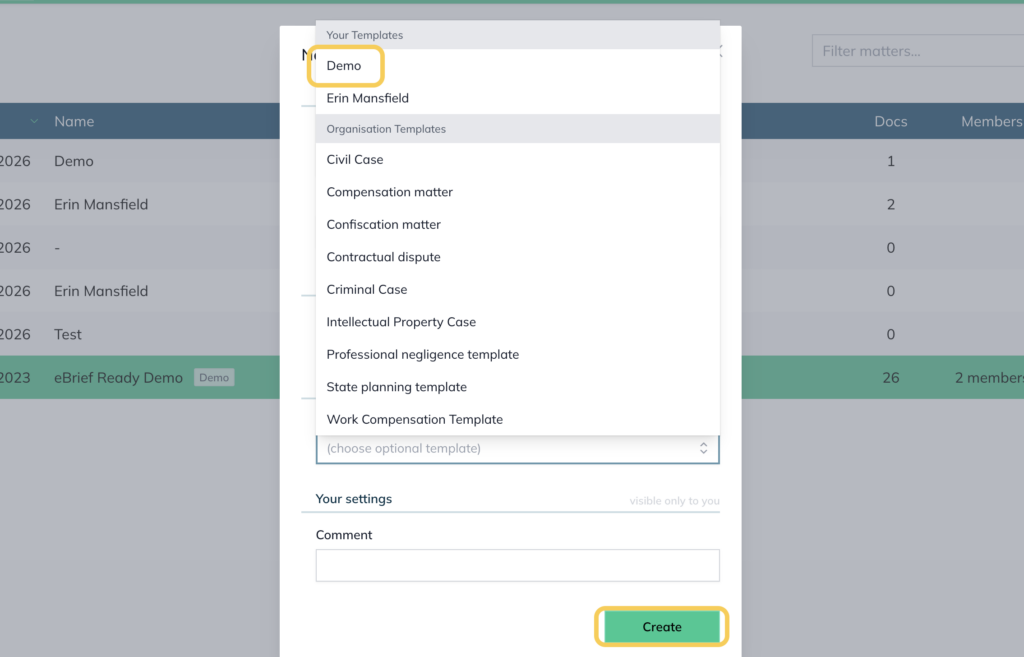
When creating a new matter, you will now have the option to select a template. The new matter will inherit the settings, folder structure, documents, fields, and tags from the template.
Managing templates #
To view and manage your saved templates, go to Your Account → Matter Templates from the left-hand menu.
From here you can:
- Rename a template by clicking the pencil icon on the right-hand side
- Publish to the organisation by checking the Published to entire organisation checkbox and clicking Update (Organisation Administrators only)
- Delete a template by clicking the X button next to its name
For further information or assistance, please do not hesitate to reach out to our dedicated Support Team via support@legalready.ai or +61 3 9020 4456.