
The Administrator role is available to Law Firm and Law Firm Plus subscribers. It allows nominated users to manage the organisation’s account, users, matters and settings within eBrief Ready.
To be set up as an Administrator for your organisation, contact support@legalready.ai.
What can the Administrator do #
- Define general organisation level settings
- Add, activate or deactivate users
- Edit user permissions
- Transfer matters from one user to another
- Delete matters
- Generate user and matter reports
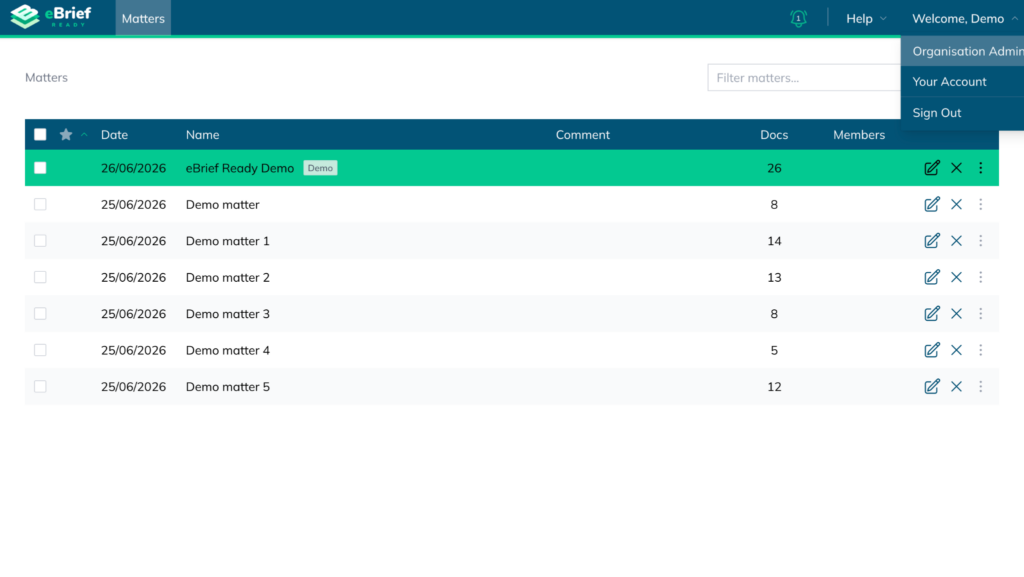
Accessing Organisation Admin #
- Click the Welcome, [Your Name] in the top right hand corner
- Click Organisation Admin
Define organisation level settings #
Under the Organisation tab you can:
- Update your organisation’s Profile information
- Modify your organisation’s Security and Privacy preferences, like:
- Allow individual users to hide their email (only the organisation’s domain will be displayed)
- Accept usage of AI features
- Set Data retention periods for the auto deletion of inactive matters and adjust the retention period for trashed items:
- Matter expiry duration: Matters owned by the organisation and not accessed for the above duration will be automatically trashed by eBrief Ready
- Trashed items retention period: Trashed matters, folders and documents will be permanently deleted from eBrief Ready after the above duration has elapsed
- Manage organisation’s Matter templates
- Define a Custom field such as “Matter number” or “Case ID”, which will be required during matter creation
Managing users #
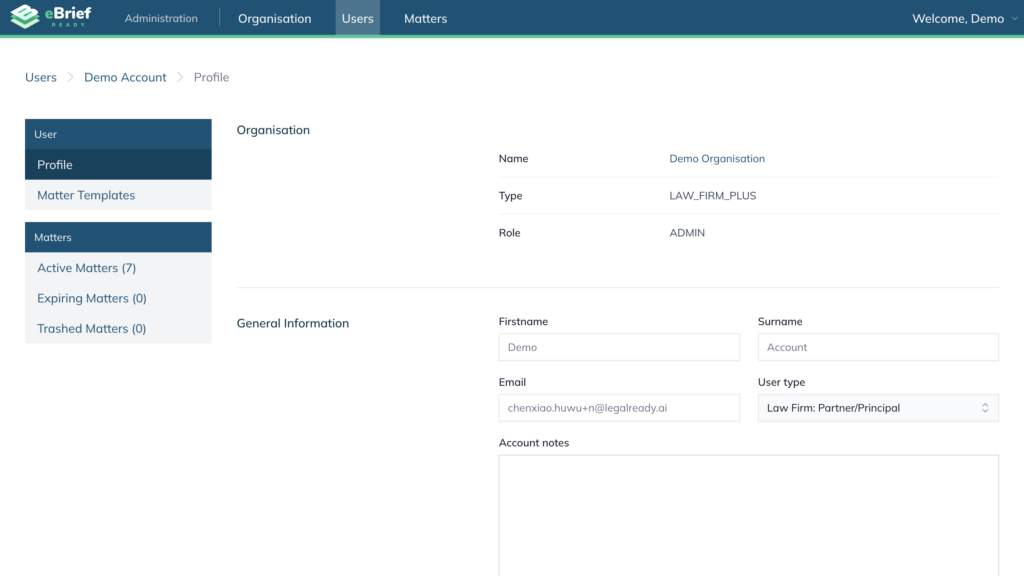
Under the Users tab, you can view a list of all users within your organisation, including active, view-only, and deactivated users.
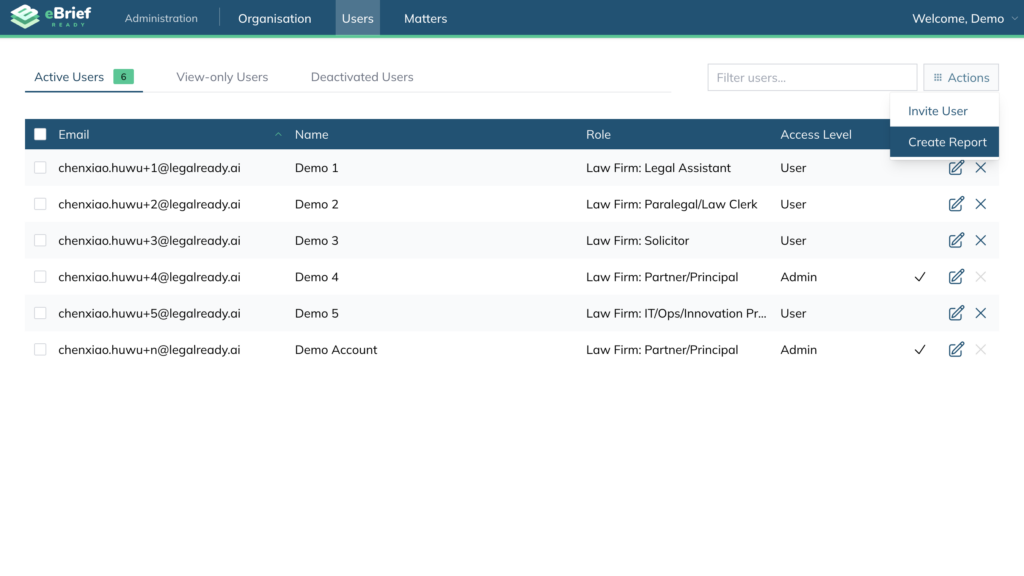
Under Actions you can generate reports for all users in your organisation by clicking Actions > Create Report.
For each user, you can:
- Edit User: Update user’s name, user type and role
Note: You can assign a user as the Organisation contact, making them the main point of contact for organisation-related matters. - Review User’s Profile and Matters: Click on the user’s name to see their profile details and a list of the user’s matters (including Active, Expiring, and Trashed matters)
- Deactivate User: click the X icon to deactivate the user
Bulk manage users #
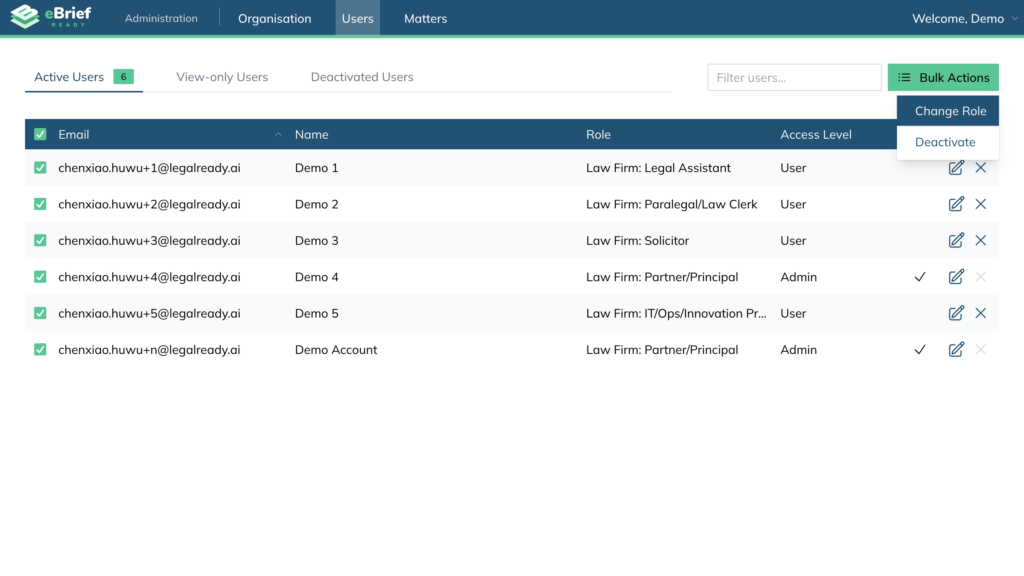
You can change user roles or deactivate multiple users at once by selecting them and using the bulk edit options.
User report #
Under the Users tab, you can generate reports for all users within your organisation by selecting Actions > Create Report.
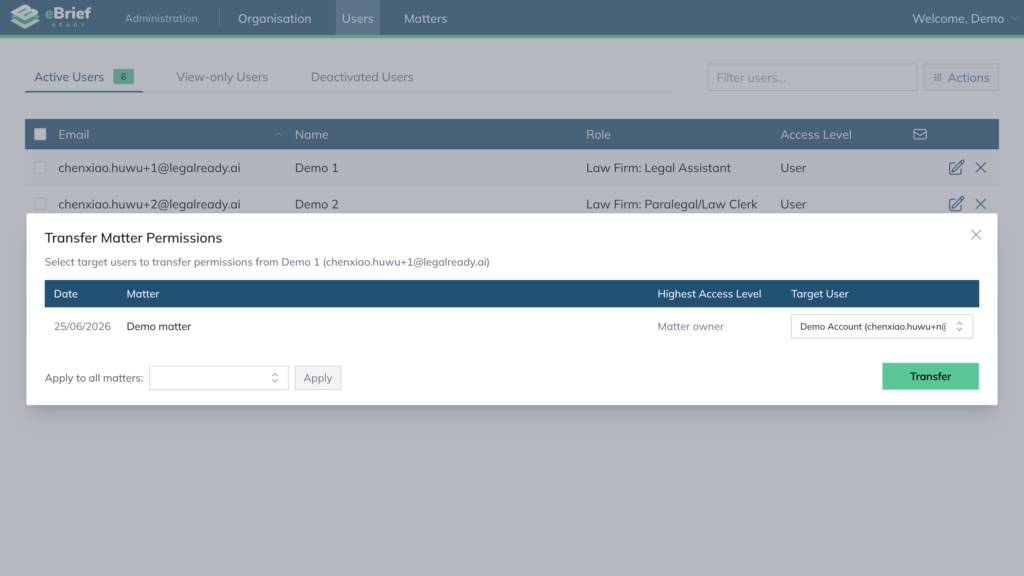
Transferring matters between users #
Under the Users tab:
- Click the X icon next to the user that needs to be deactivated
- Click the dropdown menu and choose the new user or email address
- Note: You can bulk transfer matters to the same user through the “Apply to all matters” option
- Note: You can bulk transfer matters to the same user through the “Apply to all matters” option
- Click Transfer — all matters will be transferred to the selected user, maintaining the permissions set for each matter
Managing matters #
Under the Matters tab, you can view a list of all matters within your organisation, including Active, Expiring, and Trashed matters.
You can review and manage each matter individually by:
- Select a Matter
- Click Edit on the right hand side of the user
- Choose the level of access you want to grant the user
- Click Update
You can also add additional users to the matter by selecting Invite Member in the top-right corner and entering their details.
You can delete multiple matters at once by selecting the relevant matters and using the bulk edit options.
Matters report #
Under the Matters tab, you can generate reports for all matters within your organisation by selecting Matter Report in the top-right corner.
Subscription options #
If the Administrator does not handle any matters themselves, this user role is not charged.
For further information or assistance, please do not hesitate to reach out to our dedicated Support Team via support@legalready.ai or +61 3 9020 4456.