
A Multiparty matter is designed for sharing a matter with opposing parties, a mediator or the court.
A Multiparty matter lets you share a single matter with opposing parties, a mediator, or the court, while keeping sensitive work private. Each party gets its own private work area, and a shared area holds documents that everyone can access.
Creating a Multiparty matter #
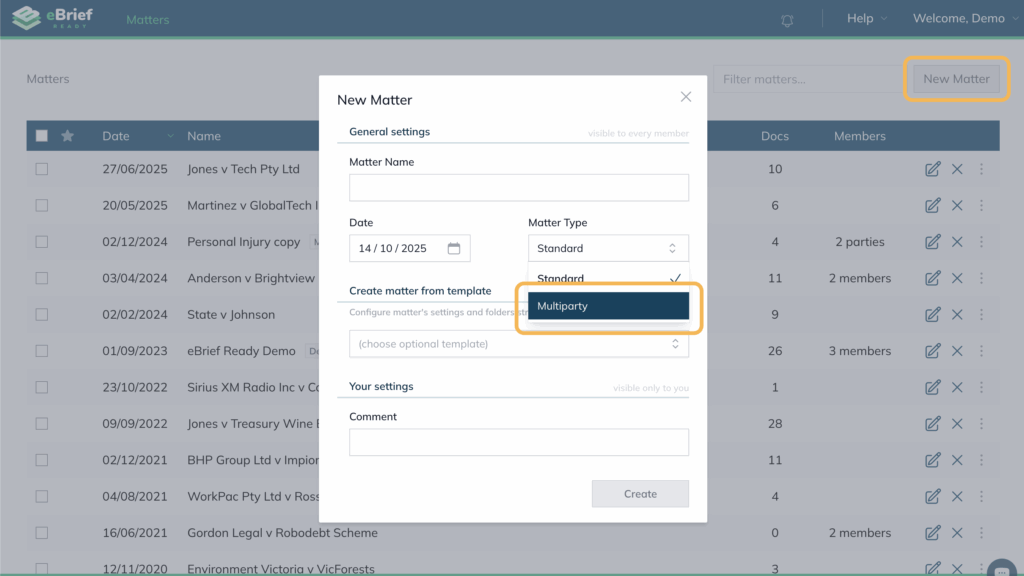
- Click New Matter
- Under Matter Type, select Multiparty
- Enter your Party Name
- Click Create – the matter will now be created and labelled as a Multiparty matter
Managing parties and members #
To view the list of parties and members, go to your matter Setup.
Managing parties #
From here you can:
- Remove a party if they have not accessed the matter yet
- Invite a new party — the user will receive an invitation to join the matter as the matter owner. You can assign one user to each new party you add.
Managing members #
To invite a member to your own party:
- Click Members in the left panel
- Select Invite Member
- Enter the member’s email address
- Choose their permission level
Setting up private folders #
- Click Setup and select Private Folders Setup
- Click New Folder
- Enter the folder name and click Create
Each party will now have a private folder section visible only to them.
Adding documents to a shared or private folder #
- Click the Documents tab and click Actions
- Select either Add Private Documents or Add Shared Documents
- Click select documents to search for your documents
- Under Upload to: select one of the following options:
- Single folder – select a specific folder from the matter
- Smart Classification – AI feature which will extract data from the document (eg Suggest a title and which folder to upload the file to)
- Individual folders – manually select which folder each individual document is to be uploaded to
- If you are adding shared documents, you will need to check the box “I understand that documents will be visible to all parties”
- Click Upload – your documents will now appear in either the shared or private folder as selected
How to convert an existing Standard matter to a Multiparty matter #
If you have a Standard matter and require to convert this to a Multiparty matter instead, complete the following steps:
- In the Matter screen, locate your Standard matter and click the three dots on the right hand side of the matter
- From the dropdown menu, select Copy Matter
- Choose the option to copy the matter to yourself and enable it as a Multiparty matter
- Enter the Party Name and click Copy – your existing matter is now successfully updated to a Multiparty matter
Note: Converting creates a copy of the matter. Your original matter remains intact with all folders, documents, and briefs unchanged.
This short video explains the process further.