
A brief or court book compiles your matter documents into a single paginated PDF bundle with a hyperlinked index. Once created it can be shared with counsel, opposing parties, or the court.
Prerequisites #
- All documents should be uploaded and arranged in the correct order before creating a brief or court book
- See Sorting documents and Creating folders and subfolders for guidance on organising your documents first
Creating a brief or court book #
- Open your matter and click Actions in the top right corner
- Select Create Brief/Court Book
- Enter a name for the brief or court book
- Select which folders to include — you can include all folders or specific ones only
- (Optional) Click Click to choose file to add a cover page
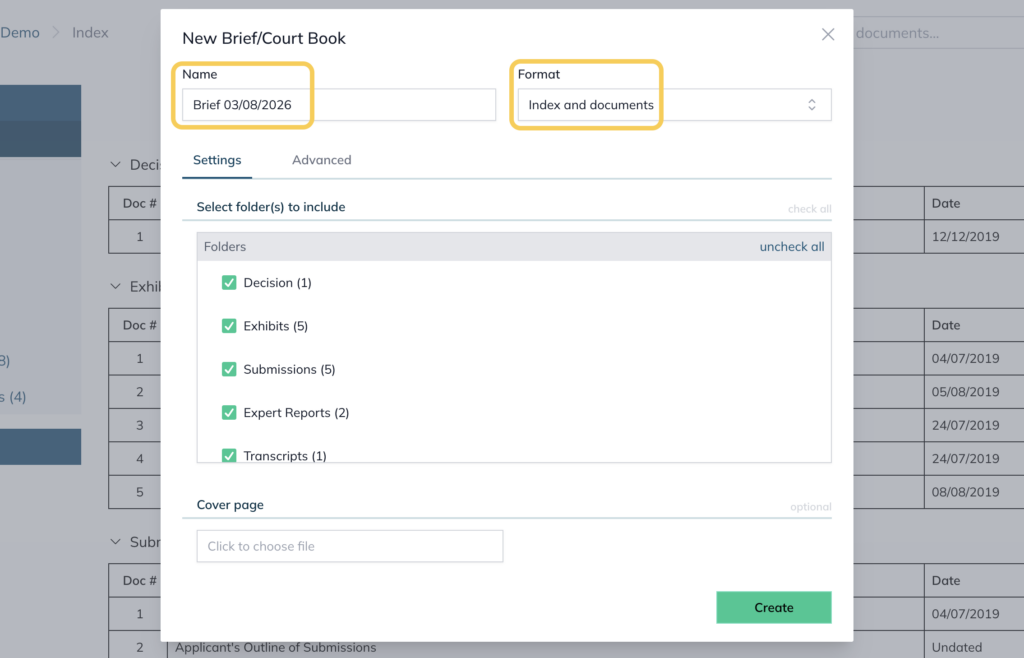
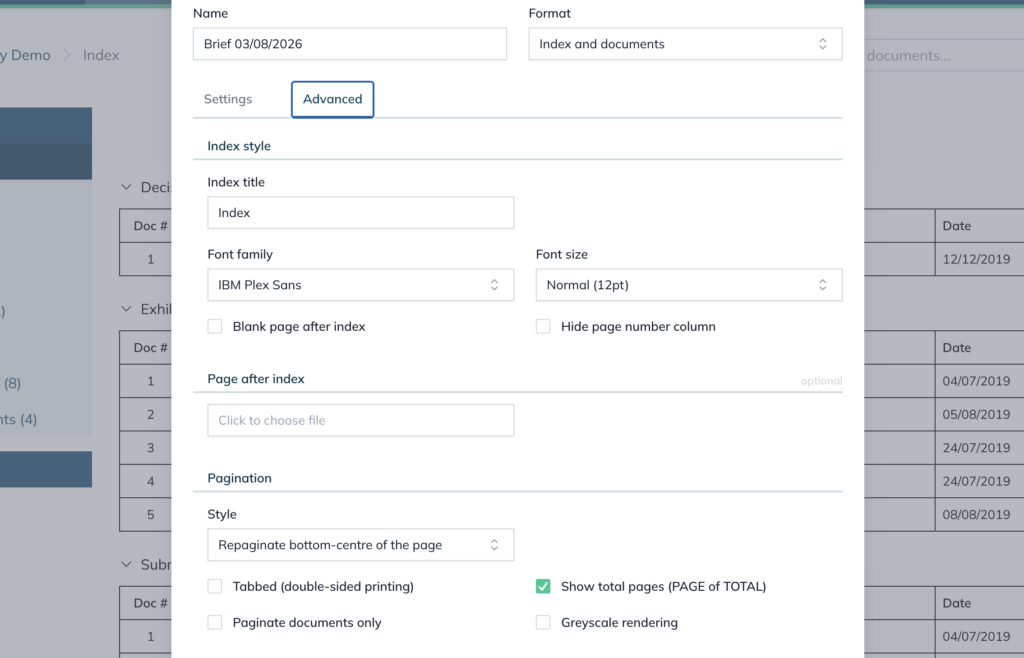
- (Optional) Click Advanced tab to access additional options:
- Index style options — rename the index title (e.g. “Index” or “Table of Contents”) and update the font family and font size to match your preferred formatting
- Insert a blank page after the index — adds a blank page between the index and the first document
- Repaginate the entire bundle — renumbers all pages sequentially across the entire bundle. This is required before enabling the total pages feature
- Display total number of pages — shows the total page count on each page. Note that repagination must be enabled first
- Click Create
Processing time #
The time required to generate the brief will vary depending on the size of the bundle. A 1,000 page bundle typically takes just a few minutes. You will receive an email confirming when the bundling is complete.
Viewing your brief or court book #
Once complete, the brief will appear in Extras → Briefs/Court Books.
The brief includes:
- A hyperlinked index listing all documents
- Bookmarks on the left hand side for easy navigation between documents
- Full text search across all documents using optical character recognition
For further information or assistance, please do not hesitate to reach out to our dedicated Support Team via support@legalready.ai or +61 3 9020 4456.