
This article explains the steps required to enable Azure Active Directory (AD) Single Sign-On (SSO) for your organisation in eBrief Ready.
Step 1: Test the sign-in
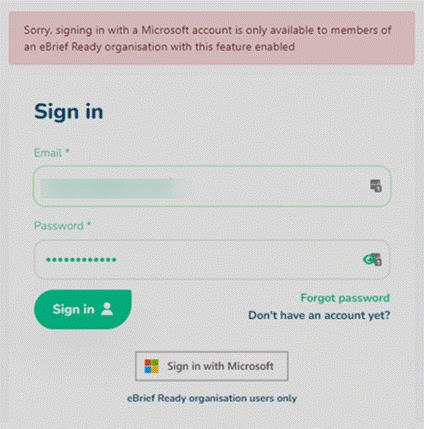
Have your Microsoft 365/Entra ID administrator attempt to sign in using the Sign in with Microsoft button on the eBrief Ready login page.
If you receive the following error message — “Sorry, signing in with a Microsoft account is only available to members of an eBrief Ready organisation with this feature enabled” — this confirms that your Microsoft Entra ID is set up correctly and the integration simply needs to be activated.
Step 2: Schedule activation
Contact the Legal Ready Support Team to schedule a day and time for the activation to take place.
Step 3: Notify your users
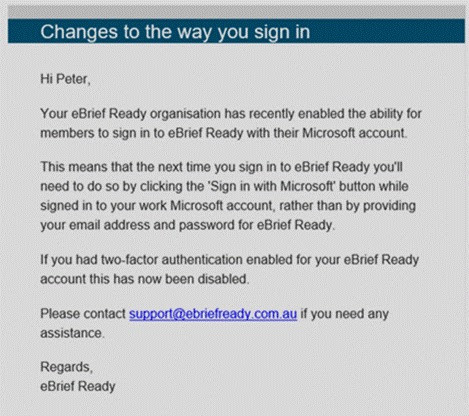
Before the activation date, inform your users that from the specified day and time, they will need to sign in using the Sign in with Microsoft button instead of their eBrief Ready email address and password. This step is important to avoid confusion when users receive the notification email in Step 4.
Step 4: Activation and user notification
Once the switch has been made, all users will automatically receive an email notifying them of the change.
For further information or assistance, please do not hesitate to reach out to our dedicated Support Team via support@legalready.ai or +61 3 9020 4456.