
There are two ways to upload documents to a matter in eBrief Ready — through a third party integration or directly through the web app.
1. Upload through integrations #
eBrief Ready integrates with a number of legal practice and document management systems, allowing you to upload documents directly from your existing software.
For a full list of supported integrations and setup instructions, see eBrief Ready Third Party Integrations.
2. Upload through the web app #
- Open the matter you want to upload documents to.
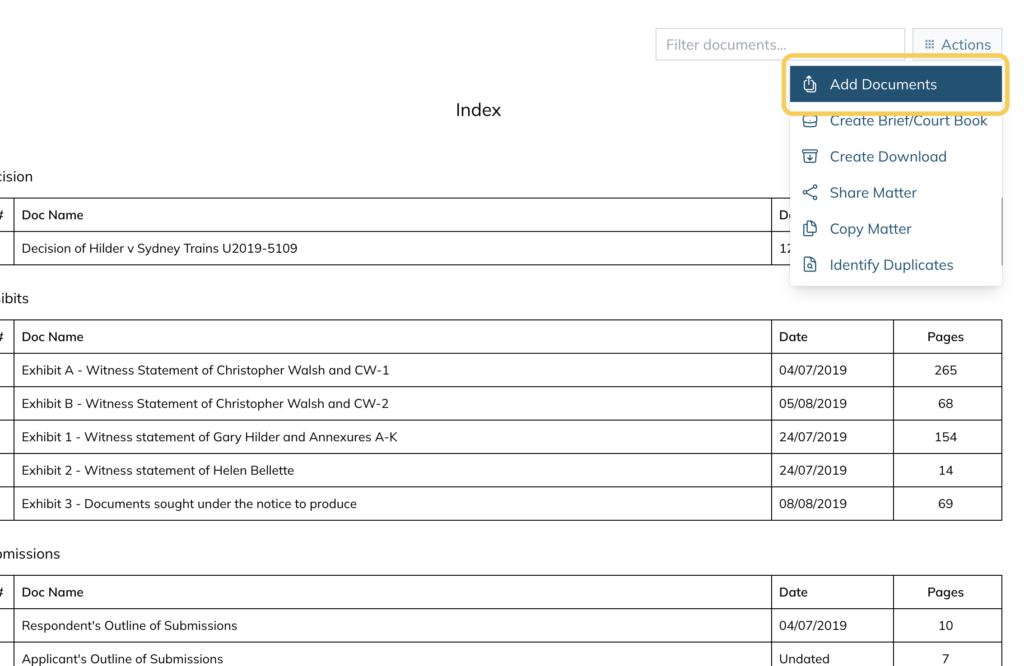
- Click Actions in the top right corner and select Add Documents.
- Click select documents to browse your computer, or simply drag and drop files and entire folders directly into the upload area
For more details on importing entire folders, see Bulk uploading folders below.
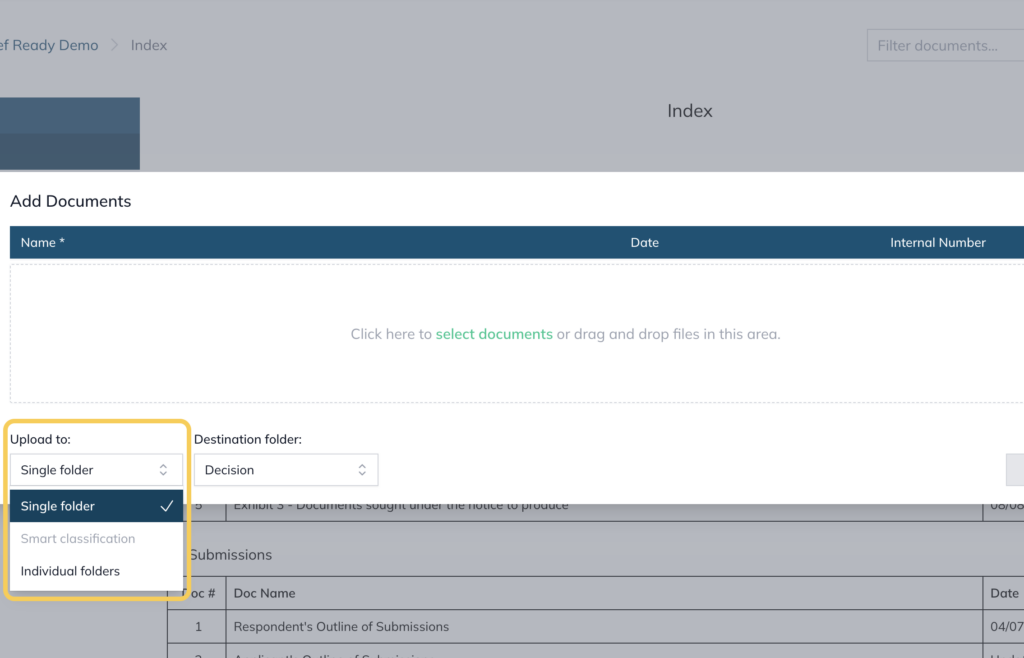
- Under Upload to, choose how documents are assigned to folders:
- Single folder — all documents go into one folder. Select the destination from the Destination folder dropdown
- Smart classification — AI feature which automatically suggests file names, dates and destination folders
- Individual folders — assign each document to a different folder individually
- Click Upload
Note: If you drag and drop a folder, the folder structure from your computer will be displayed by default. If a folder doesn’t already exist in the matter, the system will automatically create one. You can move documents to different folders after uploading if needed. For a full walkthrough of uploading folders using drag and drop, see How to drag and drop folders into eBrief Ready
Bulk uploading folders #
With bulk uploading, you can import entire folders directly from your computer into eBrief Ready in a single step while keeping your existing folder structure completely intact.
- Open the matter you want to upload documents to
- Click Actions in the top right corner and select Add Documents
- Drag and drop the entire folder from your computer into the upload area
- Under Upload to: select Individual folders from the dropdown
The folder structure from your computer will be displayed by default. You can also select an existing folder from the dropdown list.
Note: If a folder doesn’t already exist in the matter, the system will automatically create one for you.
- Click Upload
For further information or assistance, please do not hesitate to reach out to our dedicated Support Team via support@legalready.ai or +61 3 9020 4456.