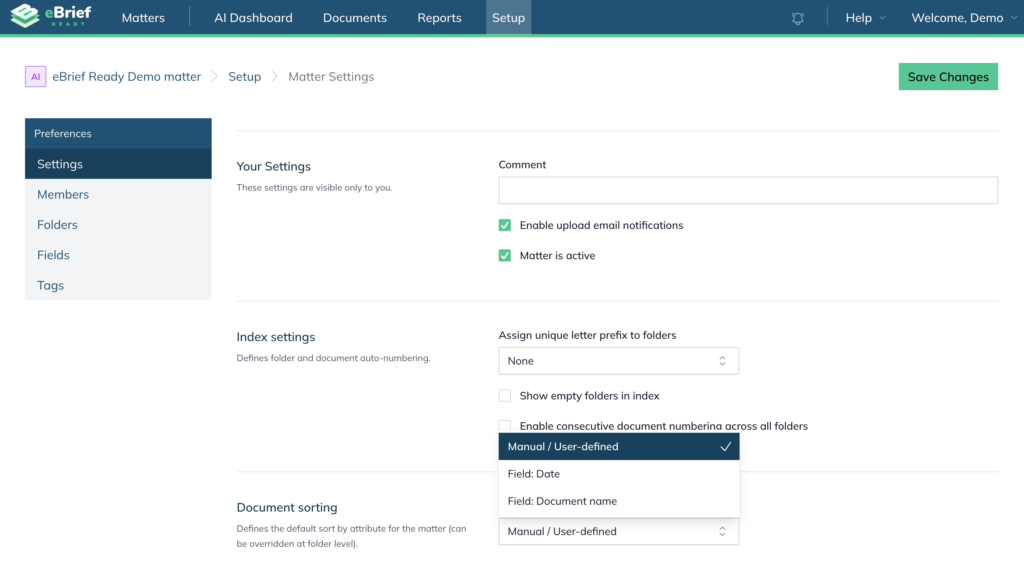
Matter Settings is where you can update the details of an existing matter and control how documents are sorted and numbered. To access it, open your matter, click Setup in the top navigation bar, then select Settings from the left hand frame.
Click Save Changes in the top right corner when you are done.
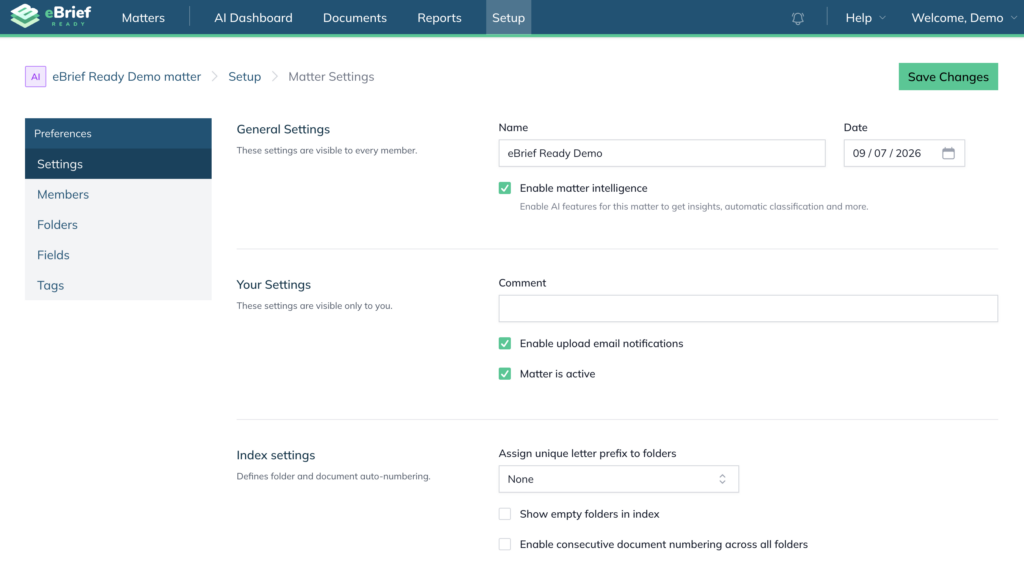
General settings #
These settings are visible to every member of the matter.
- Name — update the matter name
- Date — update the matter date
- Enable matter intelligence — when AI is enabled under your Pro account or by your organisation administrator, you will be able to tick this checkbox to activate AI features for this matter, including automatic classification, chronology building, and AI-assisted search and organisation
Your settings #
These settings are visible and applicable only to you.
- Comment — add a private note to help you identify the matter
- Enable upload email notifications — tick this to receive an email when another member uploads a document to the matter
- Matter is active — untick this to make the matter inactive and remove it from your main Matters view. It can be reactivated at any time
Index settings #
These settings control how folders and documents are numbered in the index.
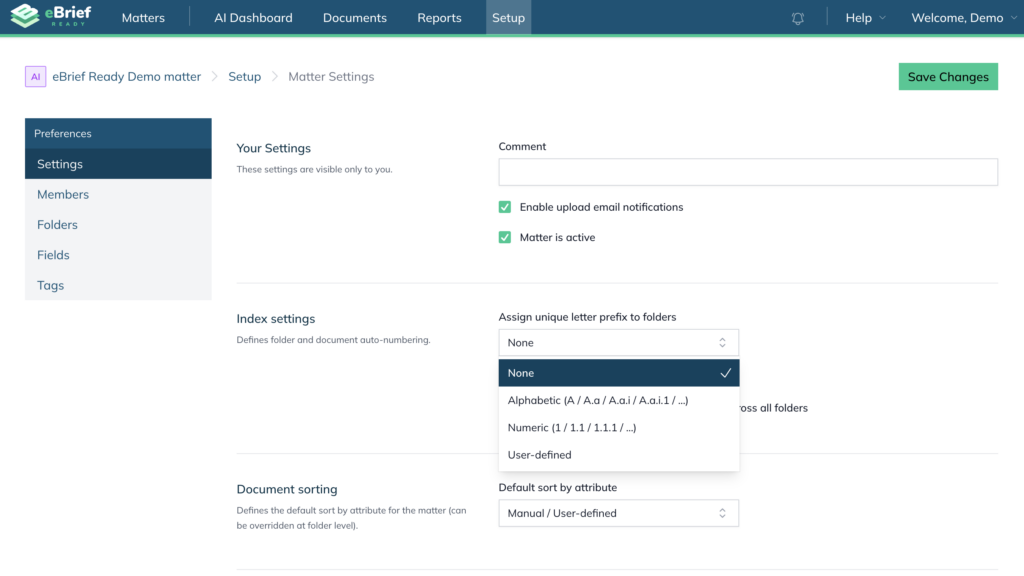
- Assign a unique letter prefix to folders — choose how folders are labelled in the index:
- None — no prefix applied
- Alphabetic (A / A.a / A.a.i / A.a.i.1 / …) — folders are labelled with letters
- Numeric (1 / 1.1 / 1.1.1 / …) — folders are labelled with numbers
- Show empty folders in index — tick this to include folders that contain no documents in the index
- Enable consecutive document numbering across all folders — tick this to number documents continuously across all folders rather than restarting at 1 in each folder
Document sorting #
This sets the default sort order for documents across the entire matter. Individual folders can override this setting.
- Manual / User-defined — you control the order by dragging and dropping
- Field: Date — documents are ordered automatically by date
- Field: Document name — documents are ordered automatically by name